
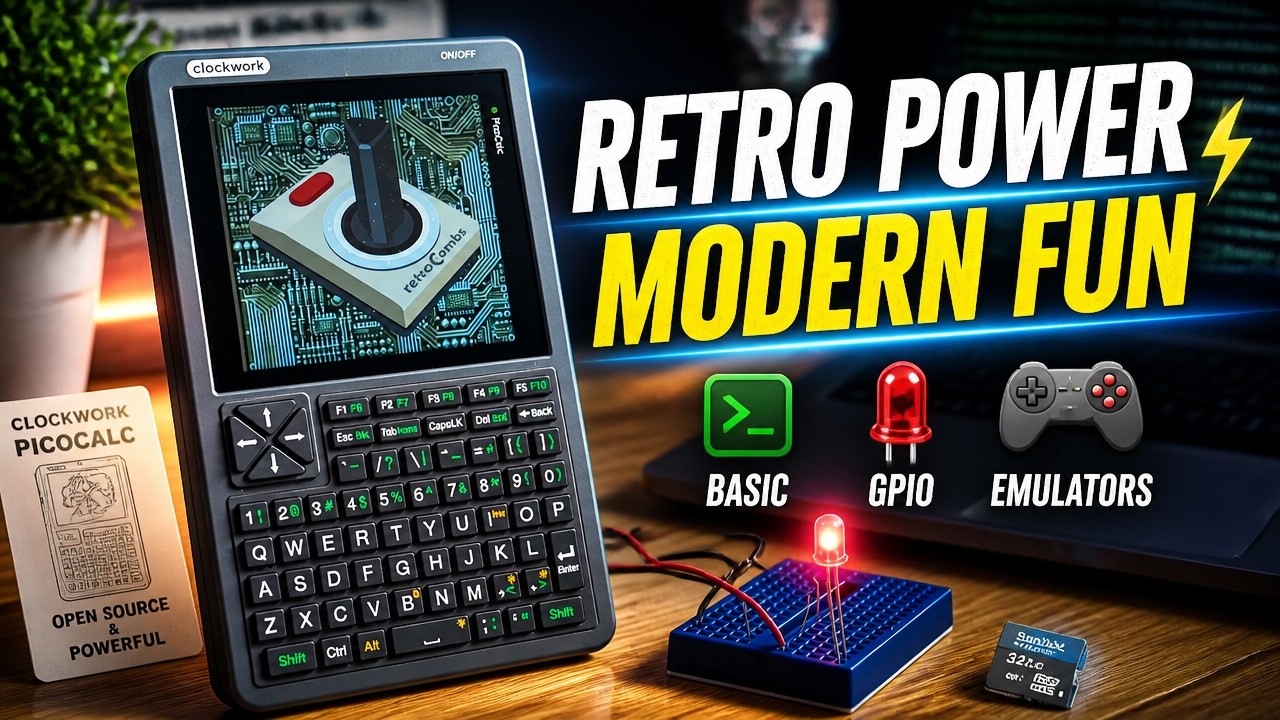
I’ve always had a soft spot for handheld computers, going all the way back to the 1980s. What I wanted from those devices was a way to program in BASIC on the go, but single-line displays and chiclet keyboards didn’t make that easy. The Clockwork PicoCalc finally scratches that itch: a Raspberry Pi Pico, a 320x320 IPS color screen, a backlit QWERTY keyboard, speakers, an SD card slot, and GPIO pins, all in a pocket-sized kit you build yourself.
This post is the text companion to my @retroCombs-tech video. It walks through everything I cover in the video, with every command in one place so you can copy it: assembly tips, hardware shortcuts, MMBasic in direct mode, file management, your first programs, a serial terminal, blinking an LED from the GPIO pins, and loading new firmware. I’ve also added extra tips and a section on what has changed since the video was published. Let’s dig in!
Full disclosure: Clockwork sent me this PicoCalc kit.
TABLE OF CONTENTS
- TABLE OF CONTENTS
- LINKS
- SUPPORT THE BLOG AND CHANNEL
- COMPANION YOUTUBE VIDEO
- VIDEO ERRATA
- UPDATES SINCE THE VIDEO
- ASSEMBLY TIPS AND TRICKS
- BATTERIES AND PICO UPGRADES
- PICOCALC HARDWARE CONTROLS
- USING MMBASIC ON THE PICOCALC
- FILE MANAGEMENT COMMANDS
- A SIMPLE MMBASIC PROGRAMMING FLOW
- DISPLAY AN IMAGE
- WHERE TO LEARN MORE MMBASIC
- YOUR FIRST MMBASIC PROGRAM
- USE A SERIAL CONNECTION
- USING THE GPIO PINS
- LOADING NEW FIRMWARE
- EXTRA TIPS AND TRICKS
- CONCLUSION
LINKS
Below are the links you need to get the most out of your PicoCalc.
Video Mention Links
- ✨ Clockwork PicoCalc (official store): https://www.clockworkpi.com/product-page/picocalc
- 🔌 CoolTerm (terminal program for Mac, Windows, and Linux): https://freeware.the-meiers.org/
- 🎨 GIMP (free image editor I use to make
.bmpfiles): https://www.gimp.org/ - 💾 Archive.org (old computer BASIC manuals): https://archive.org
- 📺 My Clockwork uConsole video: https://youtu.be/pNG8KqZs_Fg
- 📺 My Clockwork DevTerm video: https://youtu.be/I7StErCRl1Q
- 📝 Install the MEGA65 emulator on the uConsole: blog post
PicoCalc Accessories
- 🧠 microSD Cards: https://amzn.to/3IYL3Kn
- 🔌 USB-C to Micro USB Adapter (handy for flashing firmware through the Pico’s micro USB port): https://amzn.to/3Wkxxrr
- 🔋 18650 batteries: not included with the kit. Buy certified cells from a reputable seller, and see the battery notes below.
- 💡 An LED, a resistor around 220 ohms, and a small breadboard for the GPIO project
When you click on links to various merchants on this site and make a purchase, this can result in this site earning a commission. Affiliate programs and affiliations include, but are not limited to Amazon and the eBay Partner Network.
PicoCalc and MMBasic Resources
- ClockworkPi PicoCalc GitHub: https://github.com/clockworkpi/PicoCalc
- ClockworkPi PicoCalc wiki: https://github.com/clockworkpi/PicoCalc/wiki
- ClockworkPi Forum, PicoCalc section: https://forum.clockworkpi.com/c/picocalc/31
- Geoff Graham’s projects (MMBasic): https://geoffg.net/
- PicoMite firmware and user manual: https://geoffg.net/picomite.html
- PicoCalc builds of PicoMite: https://github.com/madcock/PicoMiteAllVersions/releases
- UF2 Loader (load firmware from the SD card): https://github.com/pelrun/uf2loader
SUPPORT THE BLOG AND CHANNEL
Check out the supporters page to learn about my supporters and how you can join our community. If this post saved you some time, you can also leave a tip.
COMPANION YOUTUBE VIDEO
Title: PicoCalc Out-of-Box Tutorial: Assembly, BASIC, GPIO & Firmware Fun!
 PicoCalc Out-of-Box Tutorial: Assembly, BASIC, GPIO & Firmware Fun!
This video lives on my modern tech channel, @retroCombs-tech, where I run real tests on real tech. Subscribe there so you don’t miss the next one. Channel memberships run through my main channel, so if you’d like to support both channels, become a channel member.
VIDEO ERRATA
As of 2026-10-20:
- Who designed it: In the battery section I say “uConsole designed the PicoCalc.” I meant Clockwork (ClockworkPi). The uConsole is another Clockwork device.
- Hot-swapping batteries: I describe swapping batteries one at a time while the PicoCalc is running. Clockwork’s product page says you can do this, but it also says it may cause system instability and strongly recommends replacing batteries only after powering down. I now follow Clockwork’s advice. (ClockworkPi)
UPDATES SINCE THE VIDEO
A lot has happened in the PicoCalc world since I published this video in May 2025. Here’s what I’d want to know if I were starting today:
- Load firmware from the SD card, no computer needed. Clockwork’s official SD card image (v0.6 and later) uses UF2 Loader. Once its bootloader is flashed to the Pico, you hold
Up,F1, orF5while powering on to get a menu of firmware files from the SD card. Pico 1 firmware lives in apico1-appsfolder and Pico 2 firmware inpico2-apps. HoldDownorF3at power-on to drop into BOOTSEL mode. (UF2 Loader README, PicoCalc SD README) - The SD card layout changed. In the video, the demo firmware files on my card were named
PicoCalc_Fuzix_v1.0.uf2,PicoCalc_MP3Player_v0.5.uf2,PicoCalc_NES_v1.0.uf2, andPicoCalc_PicoMite_v1.0.uf2. The current official SD image puts them inpico1-appsalongside newer extras such as uLisp, Lua, MicroPython, and Picoware. - Newer MMBasic. My unit shipped with
PicoMite MMBasic Version 5.09.00RC5. PicoCalc-specific builds of PicoMite V6 are on madcock’s PicoMiteAllVersions page, and Geoff Graham’s official V6.03.00 release now lists PicoCalc support directly. (Geoff’s Projects) - A cold-start report on V6.03. One forum user with a Pico 2H reported intermittent black screens at power-on after upgrading to 6.03.00 and went back to 6.02.01. Others report 6.03.00 works fine. This is a single report, so treat it as a heads-up, not a known bug. (ClockworkPi Forum)
- Back up before you flash. The PicoMite manual warns that programs saved to flash may be erased when you upgrade or downgrade the firmware, and the forum report above says the first boot of 6.03 reformatted the internal
A:drive. Copy anything important to the SD card first. - New BIOS files. Clockwork has published updated BIOS files for the PicoCalc’s keyboard and power controller in the GitHub Bin folder, up to v1.7 as of September 2026. Flashing the BIOS is a separate STM32 process. I haven’t tested it, and I’d only do it to fix a specific problem.
- Price. The kit is listed at $89 on Clockwork’s store as I write this update, and it still ships without 18650 batteries.
ASSEMBLY TIPS AND TRICKS
Part of the fun of the PicoCalc is putting it together. Follow Clockwork’s assembly guide, and keep these tips in mind:
- Protect the case. The case is plastic, so lay it on a soft cloth or surface while you work. You don’t want to mar that finish right away.
- Use the included tool. Clockwork includes the hex key you need, so there’s no hunting for your own tools.
- Speakers. Remove the protective layer from each speaker, and double-check that they match the orientation shown in the guide.
- Leave the screen film on. Ignore the directions to remove the screen’s protective layer at the start. It keeps fingerprints off the screen while you build. Just make sure its little pull tab is pointing out so you can remove it later.
- Keycaps. Mine were already in place when I took the keyboard out of the box, and yours should be too. If any aren’t, drop them into place using the guide.
- Mount the Pico carefully. Make sure every pin sits on top of the headers before you apply a firm press. The Pico’s micro USB port should point up, in line with the USB-C port on the motherboard. You’ll use both ports, more on that below.
- The screen ribbon cable is the most fragile part. Open the connector slowly. I used a very small screwdriver to gently lift the locking bar. Insert the cable until the line printed on the ribbon matches the line on the motherboard, then snap the connector closed.
- Seat the motherboard. Make sure the outer holes sit over the screw posts, then give each post a gentle push so it seats against the board.
- The SD card can wait. The instructions say to insert it during assembly, but there’s an easy-access opening after the case is closed.
- Don’t overtighten. Use the machine screws and the included tool to close the back shell. Tighten just enough to secure the case, so you don’t crack it or strip the screws.
- Glass panel last. Insert one or two batteries, then install the glass. Don’t touch the inside of the glass. Peel the adhesive backing, now pull the screen’s protective film using that tab, place the glass in the correct orientation, and press firmly around the edges. It adheres for good.
BATTERIES AND PICO UPGRADES
The PicoCalc runs on 18650 lithium cells, and it works with just one. Clockwork designed the battery holder for cells 18 mm (±0.5 mm) in diameter and 65 to 69 mm long, so both flat-top and button-top cells fit. Check the polarity every time you insert a cell. The front LED shows yellow while charging over USB-C and turns off when charging finishes. (ClockworkPi, GitHub issue #6)
You can also swap the included Raspberry Pi Pico for a newer model like the Pico W or Pico 2. That opens the door to Wi-Fi (Pico W), more flash storage, and more processing power (Pico 2). I don’t cover the swap in the video. Just remember that each Pico needs firmware built for it: there are separate PicoMite builds for the Pico, Pico 2, and the WebMite versions for the W boards.
PICOCALC HARDWARE CONTROLS
Before we get to programming, here are the shortcuts you’ll use every day with the default MMBasic firmware:
| Action | Keys |
|---|---|
| Power on/off | Hold the power button for 1 second |
| Check battery level | Hold Alt and press B |
| Screen brighter | Hold Alt and press > |
| Screen dimmer | Hold Alt and press < |
| Cycle keyboard backlight | Hold Alt and press Space |
| Previous/next command | Up / Down arrows |
| Break a running program | Shift + Esc |
The battery check blinks the top-left LED: three flashes means a high battery level, two means medium, and one means it’s time to swap batteries.
The PicoCalc remembers what’s in memory between power cycles, which is a nice feature our old Commodore computers lacked. Command history (the arrow keys) is not saved between power cycles, though. These shortcuts work with the default MMBasic firmware, but they may not be available in other firmware, so check its documentation.
USING MMBASIC ON THE PICOCALC
When you power on, the PicoCalc boots straight into the MMBasic interpreter, which shows a > prompt. You can type commands and see results immediately (direct mode), or use the built-in editor for longer programs.
MMBasic was created by Geoff Graham. It’s a modern, friendly dialect of the BASIC that powered so many 8-bit computers, like the Commodore and Atari machines. The version on the PicoCalc is called PicoMite.
The simplest thing you can do is use the PicoCalc as a calculator:
PRINT 5 + 10
Do we really have to type PRINT every time? Nope. The old Commodore shortcut works, so the question mark stands in for PRINT:
? 25 / 5
? 12 * 3
? (15 - 7) * 2
MMBasic also has plenty of functions and more complex expressions. Check the manual for the full list.
FILE MANAGEMENT COMMANDS
Before programming, you need a few file commands for the Pico’s internal memory and the SD card. Power off the PicoCalc, insert the SD card, and power back on. At the > prompt:
| Task | Command |
|---|---|
| Switch to the SD card | B: |
| Switch to the Pico’s internal flash | A: |
| List files and folders | FILES |
| Load a program | LOAD "MYGAME.BAS" |
| Run the program in memory | RUN |
| Load and run in one step | RUN "MYGAME.BAS" |
| List the program in memory | LIST |
| View a file without loading it | LIST "MYGAME.BAS" |
| Save the program in memory | SAVE "MYGAME.BAS" |
If you used MS-DOS back in the day, B: will feel familiar. Instead of DIR, though, MMBasic uses FILES.
Here’s another Commodore-style shortcut: you can leave off the closing quotation mark, as in LOAD "MYGAME.BAS, and save a keystroke.
LIST "filename" is handy when a file name is too vague to remember what’s inside. It shows the file’s contents without loading it into memory.
Everything that works on the B: drive also works on A:. Internal storage is limited, though. It’s fine for BASIC programs, but there’s not much room for images or audio.
A SIMPLE MMBASIC PROGRAMMING FLOW
This won’t fit everything you do, but it’s a great workflow to start with:
- Clear memory with
NEW. - Type
EDIT, or pressF4, to open the built-in editor. - Type your program.
- Press
F1to exit the editor. - Type
LISTto review the program outside the editor. - Type
B:to select the SD card. - Save with
SAVE "MY-PROG.BAS". - Type
RUN. - If the program loops forever, or you need to stop it, press
Shift+Escto break.
Always save before you run. A program that locks up the PicoCalc can cost you your work. The good news is that, unlike our old Commodores, the program in memory survives a power cycle. Still, save first.
Here’s the kind of endless loop I use in the video to show a break:
10 PRINT "Hello retroCombians ";
20 GOTO 10
DISPLAY AN IMAGE
The PicoCalc has a color screen, not just green-on-black text. To display a picture, it needs to be a 24-bit color bitmap (.bmp) at 320x320 pixels so it fits the screen. I use the free and open-source GIMP: export as BMP and choose the 24 bit (R8 G8 B8) RGB format.
Then copy the file to the SD card and load it:
LOAD IMAGE "LOGO.BMP"
WHERE TO LEARN MORE MMBASIC
Once you’ve seen the basics, you’ll want to write your own programs. Here’s where I’d start:
- The PicoMite User Manual. It’s comprehensive, about 280 pages, and includes a BASIC programming tutorial. You’ll find it on Geoff’s PicoMite page and linked from the ClockworkPi GitHub. I also upload the manual to my favorite AI tool and ask it for examples of specific things I want to try.
- The ClockworkPi Forum. The PicoCalc section is full of users sharing tips and code and answering questions.
- Geoff Graham’s site. geoffg.net has tutorials and examples for the various versions of MMBasic.
- YouTube. Mine is one of many videos on this device.
- Old BASIC manuals. Want a true retro experience? Grab old Commodore 64, Apple II, and other 8-bit BASIC manuals from archive.org. MMBasic isn’t identical to those dialects, but many of the core concepts and commands carry over.
YOUR FIRST MMBASIC PROGRAM
Type EDIT (or tap F4) to open the editor. For that authentic retro feel, you can use line numbers. Here’s a program that prints “Hello” five times:
10 For i = 1 to 5
20 Print "Hello"
30 Next i
Press F1 to exit the editor, then type RUN. If you get a syntax error, go back into the editor, fix it, press F1, and try again. BASIC has always been about trial, error, and iteration.
If line numbers feel too 70s and 80s, MMBasic also supports structured programs without them. Here’s the same idea:
For i = 1 to 5
  ? "Hello Again"
Next i
Press F1 and RUN it. That’s all it takes.
USE A SERIAL CONNECTION
If the small keyboard slows you down, or you want to paste code from your computer, connect the PicoCalc to your computer with a USB-C cable. It shows up as a serial port. I use CoolTerm on the Mac (it’s also available for Windows and Linux), but PuTTY or the screen command in a terminal work too.
Set your terminal program to 115200 baud. In CoolTerm, my connection shows 115200 8-N-1. With screen on a Mac or Linux machine, it looks something like this (your device name will differ):
screen /dev/tty.usbserial-XXXX 115200
Once connected, anything you type in the terminal goes to the PicoCalc, and anything the PicoCalc displays appears in the terminal, except .bmp images. You can write code in a text editor on your computer and paste it into the terminal window.
USING THE GPIO PINS
The GPIO (general-purpose input/output) pins let the PicoCalc control things in the real world, like LEDs, motors, and sensors. Think of them as digital switches. An output pin sends a signal, and an input pin reads one.
For this demonstration, I blink an LED on pin GP21. The circuit:
- One end of a resistor (around 220 ohms) to GP21 on the PicoCalc header.
- The other end of the resistor to the LED’s anode (positive, longer leg).
- The LED’s cathode (negative, shorter leg) to GND on the PicoCalc.
A small breadboard makes this plug and play. The resistor limits the current so you don’t burn out the LED, or worse, the Pico.
Direct Mode
First, tell MMBasic that GP21 is a digital output:
SetPin GP21, DOut
Turn the LED on (high):
Pin(GP21) = 1
And off (low):
Pin(GP21) = 0
Remember, the Up arrow brings back your last command, so switching between 1 and 0 is quick.
A Blink Program
Here’s the program from the video that blinks the LED until you break it with Shift + Esc:
SetPin GP21, DOut
Do
  Pin(GP21) = 1
  Pause 500
  Pin(GP21) = 0
  Pause 500
Loop
Pause takes milliseconds, so change the number to speed up or slow down the blink. Exit the editor, save it to the SD card or the Pico with something like SAVE "LED-BLINK.BAS", and RUN it.
Always be careful when connecting external components, and always use resistors to protect your parts and the PicoCalc.
LOADING NEW FIRMWARE
The video focuses on the default MMBasic firmware, but for completeness, here’s how I loaded the NES emulator and played a game of Galaga. This is where the Pico’s micro USB port comes in. The USB-C port won’t work for this.
- Copy the
.uf2firmware file you want to your computer. My SD card included demo firmware in a folder. - Power off the PicoCalc.
- Press and hold the small BOOTSEL button between the vents on the back. I use a small screwdriver.
- While holding the button, plug the micro USB cable into the PicoCalc. A new drive appears on your computer.
- Drag the
.uf2file to the root of that drive. In my case,PicoCalc_NES_v1.0.uf2. - When the copy finishes, the drive ejects itself, the PicoCalc reboots, and the new firmware loads.
I had also dropped a Galaga ROM onto the SD card, and the NES firmware found it immediately. Check each firmware’s documentation for its key mappings. Use the volume wheel to adjust the sound, which comes from the headphone jack or the built-in speakers.
To get back to BASIC, flash the PicoMite firmware the same way. Also see Updates Since the Video: with UF2 Loader, you can now switch firmware from the SD card without a computer.
EXTRA TIPS AND TRICKS
A few extras I’ve picked up from the PicoMite manual and the community:
- SD card limits. MMBasic supports SD cards up to 32GB formatted FAT16 or FAT32, which matches the 32GB card Clockwork ships. Before experimenting, copy the stock card’s contents to your computer so you can always get back to the original. (PicoMite User Manual)
-
More file commands. Beyond
FILES,LOAD, andSAVE, MMBasic includesCHDIR,MKDIR,KILL(delete a file), andCOPY. For example:MKDIR "GAMES" CHDIR "GAMES" CHDIR ".." COPY "MYGAME.BAS" TO "MYGAME-BACKUP.BAS" KILL "OLDPROG.BAS"I checked these against the PicoMite manual but haven’t run every one on my PicoCalc, so double-check the syntax for your firmware version.
- Paste whole programs with AUTOSAVE. When you’re connected over serial, type
AUTOSAVE, paste your program into the terminal, then pressF1orCtrl-Zto save it into program memory.F2saves and runs it immediately. This beats pasting line by line. - Break from the terminal. Over a serial connection,
Ctrl-Cstops a running program too. - See your settings.
OPTION LISTshows every option you’ve changed, andMEMORYshows how much program and variable memory you’re using. - Run a program at power-on. On PicoMite V6, load your program, store it in a flash slot with
FLASH SAVE 1, then setOPTION AUTORUN 1. Remember that flash slots can be erased by a firmware upgrade, so keep a copy on the SD card. (ClockworkPi Forum) - Hold Alt+B a moment. Community members note that the battery-level blinks show after you hold
Alt+Bfor a second or two and release. (GitHub issue #6) - Resistor values. I use about 220 ohms in the video, and the PicoMite manual’s own GP21 blink example uses 470 ohms. Both are safe for a typical LED at the Pico’s 3.3 volts. The higher value just makes the LED a little dimmer.
- Be careful with the micro USB port while running on batteries. Some forum members report that plugging the Pico’s micro USB port into power while the PicoCalc is switched on with batteries installed can push current where it shouldn’t. Others dispute this after reading the schematic, and Clockwork hasn’t issued guidance. I flash firmware with the PicoCalc powered off, as in the video, and charge only through USB-C. (Unverified; see the ClockworkPi Forum discussion.)
- Want Python? Clockwork publishes MicroPython builds for the Pico, Pico 2, and Pico 2 W in the GitHub Bin folder. Flash one and you boot straight into a Python prompt.
CONCLUSION
That’s how you can start having fun with the PicoCalc and its built-in MMBasic right out of the box: a pocket calculator, your first retro-style programs, a serial terminal, an LED on the GPIO pins, and even an NES emulator. It’s become one of my favorite handheld devices.
Thanks to Clockwork for sending this unit. Let me know in the video comments how you plan to use your PicoCalc, and whether you’d like a follow-up on swapping in a Pico 2 or Pico W. If you love handheld gadgets like I do, check out my handhelds playlist on YouTube. If this post helped, leave a tip.
That’s it for me, folks. 🕹️ retroCombs, OUT!
Comments
Comments use GitHub Discussions; sign in with GitHub to join in.