
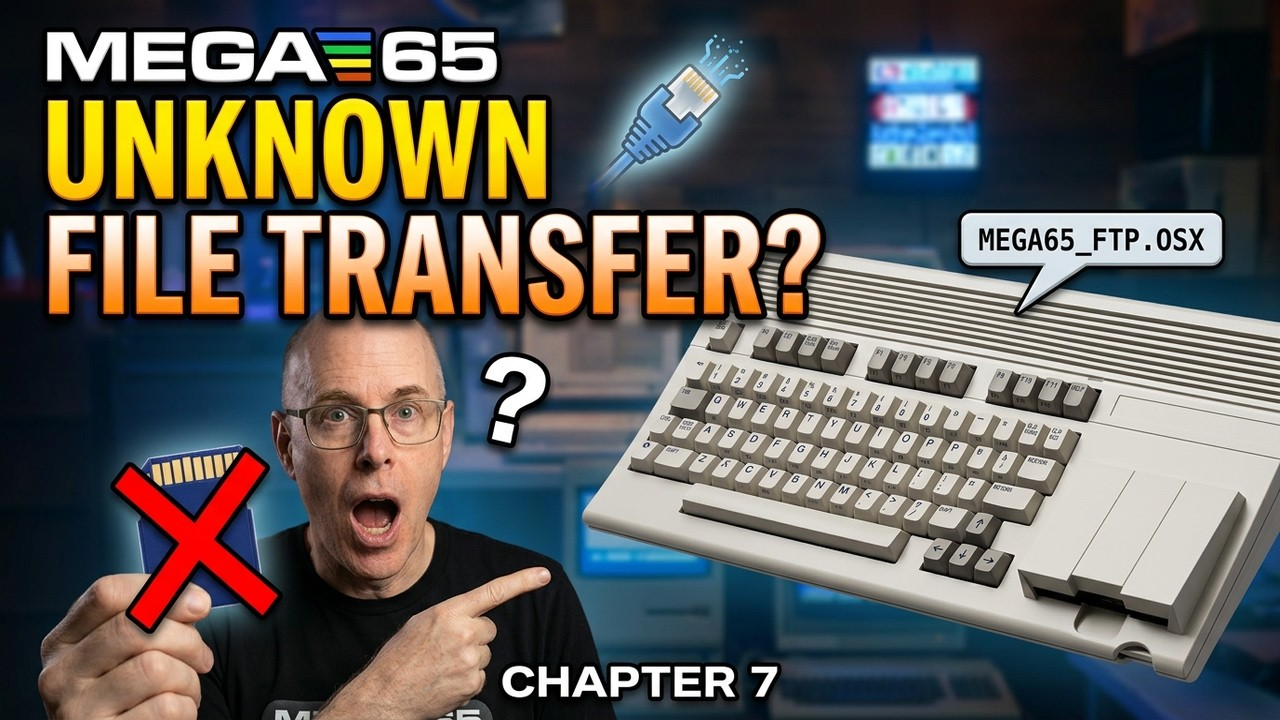
Welcome back to Chapter 7 of the MEGA65 User’s Guide series! Today, we’re diving into Chapter 7: Transferring Files, one of the most essential tasks for any MEGA65 owner: moving files between your MEGA65 and other devices. We’ll focus on network transfers across Ethernet using the M65Connect application and the mega65_ftp terminal command.
As always, this post is the text companion to the YouTube video, with all the links and a few extra tips and tricks. And if you haven’t already, check out Chapters 1 through 6. Even if you think you know everything about your MEGA65, I’m sure you’ll learn new things about your favorite retro recreation. Let’s dig in!
MEGA65 User’s Guide Series Page
TABLE OF CONTENTS
- TABLE OF CONTENTS
- LINKS
- SUPPORT THE BLOG AND CHANNEL
- COMPANION YOUTUBE VIDEO
- VIDEO ERRATA
- GETTING FILES TO THE MEGA65
- UNDERSTANDING NETWORKING
- OBTAINING M65CONNECT
- ENABLE NETWORK LISTENING
- TRANSFERRING FILES WITH M65CONNECT
- TRANSFERRING FILES WITH MEGA65_FTP
- MORE COMMAND LINE TOOLS
- CHAPTERS 1-7 COMPLETE, NOW WHAT?
- CONCLUSION
LINKS
Below are the links you need to help you get the most out of your MEGA65.
Video Mention Links
- MEGA65 Filehost
- MEGA65 Developer’s Guide
- Connect a MEGA65 to a Mac/PC using a USB Serial Adapter
- MEGA65: Patch a Commodore 65 ROM to use with the XEMU Emulator
- My modern tech channel: @retrocombs-tech
MEGA65 Accessories
- 🛜 Ethernet Network Cable: Amazon
- 💾 Floppy Disks: Amazon
- 🎽 Sew Ready Covers: eBay
- 🕹️ Hyperkin Trooper Controller: Amazon
- 🕹️ Atari CX40+ Joystick: Amazon
- 📺 Prison TVs on eBay: eBay
- 🔈 Edifier Speakers (BIG Upgrade and I LOVE these things): Amazon
- 🔈 Budget Speakers (But Still Sound Good): Amazon
- 🧠 microSD Cards: Amazon
- 🔊 3.5mm Shielded Cables: Amazon
- 🚠 HDMI Cables: Amazon
- 🐁 Tank Mouse: https://tank-mouse.com/
- 🐁 mouSTer: https://retrohax.net/shop/modulesandparts/mouster/
- 🐁 The Mouse (USB Tank Mouse Clone): Amazon
When you click on links to various merchants on this site and make a purchase, this can result in this site earning a commission. Affiliate programs and affiliations include, but are not limited to Amazon and the eBay Partner Network.
MEGA65 LINKS
- My MEGA65 Page: https://retrocombs.com/mega65
- MEGA65 Intro Disk: https://files.mega65.org?id=all-intros
- An Introduction to the MEGA65: YouTube
- MEGA65 Page: https://mega65.org
- MEGA65 Discord: https://mega65.org/chat
- MEGA65 Forum: https://mega65.org/forum
- Lulu User’s Guide: https://www.lulu.com/shop/dan-sanderson-and-edilbert-kirk-and-paul-gardner-stephen/mega65-users-guide/paperback/product-dyrzzzy.html?page=1&pageSize=4
- MEGA65 User’s Guide: https://mega65.org/user-guide
SUPPORT THE BLOG AND CHANNEL
Check out the supporters page to learn about my amazing supporters and how you can join our community.
COMPANION YOUTUBE VIDEO
Title: 💾️ MEGA65 Users Don’t Know About These Ch. 7 Transfer Methods
 MEGA65 Users Don't Know About These Ch. 7 Transfer Methods
VIDEO ERRATA
None as of 2025-07-08.
GETTING FILES TO THE MEGA65
While writing your own programs on the MEGA65 is rewarding, you’ll eventually want to run software created by others or back up your work. File transfers are the key, and the MEGA65 offers several options:
- Ethernet: The fastest and most reliable method for transferring files, using an Ethernet cable. It supports both direct and network connections, and the MEGA65 team has created both GUI and terminal software to make the transfer easy. We’ll look at both in this chapter.
- SD card transfer: Something you are probably all familiar with. Copy files or
.D81images directly onto an SD card using your PC. Remember to format the SD card using the MEGA65; see Chapter 4 for that process. This is the most unreliable and cumbersome method. I call it unreliable because PC operating systems (I’m talking to you, macOS!) can write unintended files to SD cards, causing clutter and confusion, and other operating systems can fragment files, leading to errors. This used to be the only way to move files, but thanks to the developers, that’s no longer the case. - Advanced developer interfaces: Such as JTAG and UART. You can use these to transfer files and debug FPGA cores. This method is beyond the scope of this series, but you can find more information in the MEGA65 Developer’s Guide. If you are interested in a serial connection using a UART adapter, check out my Connect a MEGA65 to a Mac/PC using a USB Serial Adapter video.
All three methods are valid; however, Ethernet is the recommended method for most users because of its speed and reliability. Let’s learn more about the tools that help you transfer files over an Ethernet cable. But first, we need to understand networking.
UNDERSTANDING NETWORKING
The MEGA65 comes with Ethernet capabilities, allowing it to connect to your local network or directly to your PC. Let’s break down how this works:
- MAC address: Unlike most devices, the MEGA65 lets you set your own Media Access Control (MAC) address in the Configuration Utility. This gives you a unique identifier on your network. We covered this in Chapter 4.
- Two connection options: Connect your MEGA65 to your local network through a router like any other device, or connect it directly to your PC with an Ethernet cable. A direct connection creates a small, isolated network between the two devices.
- IPv6: For file transfers, the MEGA65 uses IPv6, the newer internet protocol that’s typically enabled by default on most modern PCs. IPv6 is a 128-bit address upgrade to IPv4, designed to provide more addresses to the world. IPv6 is required for M65Connect and the other tools to work. It’s nice to know the MEGA65 developers are looking forward, not to the past, when it comes to network connectivity!
- UDP: MEGA65 networking tools use the User Datagram Protocol (UDP) at port 4510 for the initial connection, and the file transfer then happens over IPv6. Together, this provides a reliable connection and file transfer.
TIP: Your PC might ask for network permissions the first time you use these tools. Be sure to allow or approve them.
While this chapter focuses on local network transfers, it’s worth mentioning that the MEGA65 can also connect to the internet and to BBSes via Telnet using software called PETterm, available on the Filehost. It runs in C64 mode but uses some MEGA65 features to make the magic happen. Be warned: it is still a work in progress. Here’s hoping some enterprising developers grab that software, work out the bugs, and connect us to a whole world of internet BBSes from our MEGA65s!
OBTAINING M65CONNECT
Our focus today is using the MEGA65 on a local network, and one of the best ways to do that is with an application called M65Connect. It features both a graphical interface and command line tools. I’ve teased this application in other chapters, and now it’s time to download and install it:
- Visit the MEGA65 Filehost.
- Search for M65Connect.
- Download the version that matches your PC’s operating system. I’m using a Mac for all my examples.
- Extract the downloaded archive.
Here’s the process on three popular modern operating systems.
Windows
When you decompress the archive for M65Connect for Windows, you’ll find a folder called M65Connect. Click the M65Connect.exe file to start the application. If Microsoft Defender blocks it, click More info and then Run anyway, and the application should start.
macOS
The macOS version is an app bundle named M65Connect.app. To run it:
- Move the app to your Applications folder.
- Double-click the app to launch it.
- Since the application is not signed, approve the first launch in the Mac’s security settings.
Linux
Double-click the M65Connect file in the extracted folder to run the application. Linux is by far the most trouble-free install and the quickest way to run M65Connect.
ENABLE NETWORK LISTENING
Before transferring files, you must enable network listening on the MEGA65, and the first time requires a small hardware change: set DIP switch #2 on the main board to ON. It is off by default, so if this is your first time trying this feature, you’ll need to open your MEGA65. It’s okay to do this, and the process is very easy. Remove the screws from the bottom and lift the lid to reveal the motherboard. I keep my screws out all the time because I’m constantly experimenting with my MEGA65. You probably don’t need to, so you might want to replace the screws once you get that DIP switch flipped.
With the DIP switch set:
- Press
SHIFT+£(the pound key) on the MEGA65. - The power light will blink yellow and green. That indicates network listening is now active.
- To disable it, press
SHIFT+£again, or reset or power cycle the MEGA65.
Your MEGA65 is now ready to transfer files across your network or from your PC.
TRANSFERRING FILES WITH M65CONNECT
File transfer requires initiating a session on your PC and the MEGA65 using either M65Connect or command line tools such as mega65_ftp.
WARNING: Save any data or programs before you initiate a file transfer. The MEGA65 resets the machine to start the transfer.
Let’s start with the easiest tool to use, M65Connect:
- Open M65Connect on your PC.
- Press
SHIFT+£to enable network listening on the MEGA65. - Once connected, click the SD Card button in M65Connect to open the file manager.
- Use the left pane to navigate your PC’s files and the right pane for the MEGA65 SD card.
- Select a file and click the transfer arrow to copy it.
A connection also gives you these additional features:
- Create a new
.D81image by clicking the +D81 button. - Transfer files directly to and from a
.D81image on the PC, which is really cool. Click the.D81file and drag a.PRGor other file onto it from your PC. Once the file is in the.D81, you can transfer it to the MEGA65.
When you’re done, close the SD Card Manager to end your session and restart your MEGA65.
NOTE: A network connection does not allow some M65Connect features, such as screen capture, to work. I really miss that one! You’ll need a serial connection for screen capture, so check out my USB serial adapter video if you need it. Hopefully that feature will come to network connections in a future version of M65Connect.
TRANSFERRING FILES WITH MEGA65_FTP
Let’s warm up those fingers! The mega65_ftp tool offers advanced users a command line interface for network transfers with some really cool options. It’s included with the MEGA65 tools alongside M65Connect. My examples use the macOS build (mega65_ftp.osx) from a terminal opened in my m65tools folder.
Interactive Mode
To start an interactive session:
- Save any data on your MEGA65.
- Press
SHIFT+£to enable network listening on your MEGA65. - From the terminal on your PC, start the interactive connection. The
-eoption connects over Ethernet:
./mega65_ftp.osx -e
Once connected, you’ll see a note that the SD card was detected, followed by the prompt:
Type 'help' to get a list of commands available.
MEGA65 SD-Card:/>
Here are some of the commands available at the mega65_ftp prompt:
| Command | Action |
|---|---|
get <file> |
Retrieve a file from the MEGA65 |
put <file> |
Send a file to the MEGA65 |
dir |
List the directory of the MEGA65 SD card |
ldir |
List the local working directory on your PC |
mkdir <folder> |
Create a subdirectory on the MEGA65 SD card |
cd <folder> |
Move to a subdirectory on the MEGA65 SD card |
lcd <folder> |
Move to a local subdirectory on your PC |
help |
List all available commands |
exit |
Close the mega65_ftp connection |
Here’s a short session like the one in the video. It downloads a file, sends it back, creates a folder on the SD card, and moves into it:
MEGA65 SD-Card:/> get README.md
MEGA65 SD-Card:/> put README.md
MEGA65 SD-Card:/> mkdir test-dir
MEGA65 SD-Card:/> cd test-dir
MEGA65 SD-Card:/test-dir> dir
MEGA65 SD-Card:/test-dir> exit
When you exit, mega65_ftp resets the MEGA65 and returns you to your terminal.
Non-Interactive Mode
Interactive mode will suffice for most transfers. However, you can also run commands non-interactively, as part of a script, or just out of preference for one-off commands and speed. Non-interactive mode is also great for creating alias commands to decrease typing and speed up transfers. Here’s the example from the video:
./mega65_ftp.osx -e -c 'put wow1.d64' -c 'exit'
Can you determine what happens? Leave a comment on the video and let me know what you think! And for more experienced MEGA65 users, drop your command line tips and tricks in the comments to share with other viewers. If we get a good list, that could make a really cool follow-up video to Chapter 7.
MORE COMMAND LINE TOOLS
Although it’s not covered in the MEGA65 User’s Guide, mega65_ftp is not the only command line tool you should explore. When you install the MEGA65 tools, you’ll also have access to a few more commands:
etherload: Additional network tools for developers that can also be useful for users. Check the help (-h) to see how you can use this command.m65: Another terminal command with additional tools to manage a MEGA65. If you’d like me to spend more time on this one, leave a comment.romdiff: Of use for those who haven’t purchased a MEGA65 yet. This lets you patch the contents of the original C65 ROM with the additions from the MEGA65 developers and create a ROM you can use in emulation or even on an FPGA board. As a reminder, the original C65 ROM is protected by copyright, so this tool is for those who have access to the original C65 ROM and want to move it forward. I show you how in my Patch a Commodore 65 ROM video.
CHAPTERS 1-7 COMPLETE, NOW WHAT?
Believe it or not, that wraps up Chapter 7. It’s a short chapter, but it’s packed with information to help you get more use out of your MEGA65. And with Chapter 7 done, we’ve also completed the chapters of the MEGA65 User’s Guide series!
There’s still more information in the back half of the manual. The appendices are full of commands, and I’m brainstorming how best to share them. I don’t want to cover every single command, so if you have ideas for the best way to share the BASIC commands from the User’s Guide, leave them in the video comments. The same goes for any other MEGA65 videos you’d like to see.
CONCLUSION
Thank you for joining me for all seven chapters of the User’s Guide! If you’d like to join my Discord, where we also have a MEGA65 channel, become a channel member and support the channel. If this chapter helped, leave a tip.
Want to review? Head back to Chapter 6: Using Disks and Disk Images or visit the MEGA65 User’s Guide Series Page. I’ll be back to cover more of those commands. 🕹️ retroCombs, OUT!
Comments
Comments use GitHub Discussions; sign in with GitHub to join in.