
Some links on this page are affiliate links. If you make a purchase through them, this site may earn a commission.
You may remember how much I enjoyed the 8BitDo Retro Mechanical Keyboard C64 Edition and its blend of modern features with the look of our beloved Commodore 64. Now it has a matching sibling: the 8BitDo Retro 18 Mechanical Numpad, in the same C64 color scheme. It’s more than an add-on number pad. It’s also a calculator with a red LED display.
This post is the text companion to my video on retroCombs Tech (@retroCombs-tech). It covers what’s in the box, the build, the connection options, the calculator, every control on top, and a few tips for Mac and VICE users. Let’s dig in!
TABLE OF CONTENTS
- TABLE OF CONTENTS
- LINKS
- SUPPORT THE BLOG AND CHANNEL
- COMPANION YOUTUBE VIDEO
- WHAT’S IN THE BOX
- DESIGN AND BUILD
- CONNECTING IT
- BATTERY AND CHARGING
- IT’S A CALCULATOR, TOO
- THE CONTROLS
- TIPS FOR MAC AND VICE USERS
- WHY ADD IT TO YOUR DESK
- CONCLUSION
LINKS
- ⌨️ 8BitDo Retro Mechanical Keyboard C64 Edition: https://amzn.to/47U88dL
- 🔢 8BitDo Retro 18 Mechanical Numpad (C64 colors): https://link.amazon/B0aVIrrZj
- ⌨️ My keyboard post: 8BitDo Retro Mechanical Keyboard C64 Edition (video: https://youtu.be/a8bsIpTdP1o)
Disclosure Statement: When you click on links to various merchants on this site and make a purchase, this can result in this site earning a commission. Affiliate programs and affiliations include, but are not limited to Amazon and the eBay Partner Network.
I bought this numpad and the matching keyboard myself.
SUPPORT THE BLOG AND CHANNEL
Check out the supporters page to learn about my supporters and how you can join our community. If this post saved you some time, you can also leave a tip. And if you like gadgets, subscribe to @retroCombs-tech. Hooked on tech since ‘73.
COMPANION YOUTUBE VIDEO
Title: 🔢️ 8BitDo Retro Mechanical Numpad: Complete Your C64-Inspired Setup! #8bitdo
 8BitDo Retro Mechanical Numpad: Complete Your C64-Inspired Setup!
WHAT’S IN THE BOX
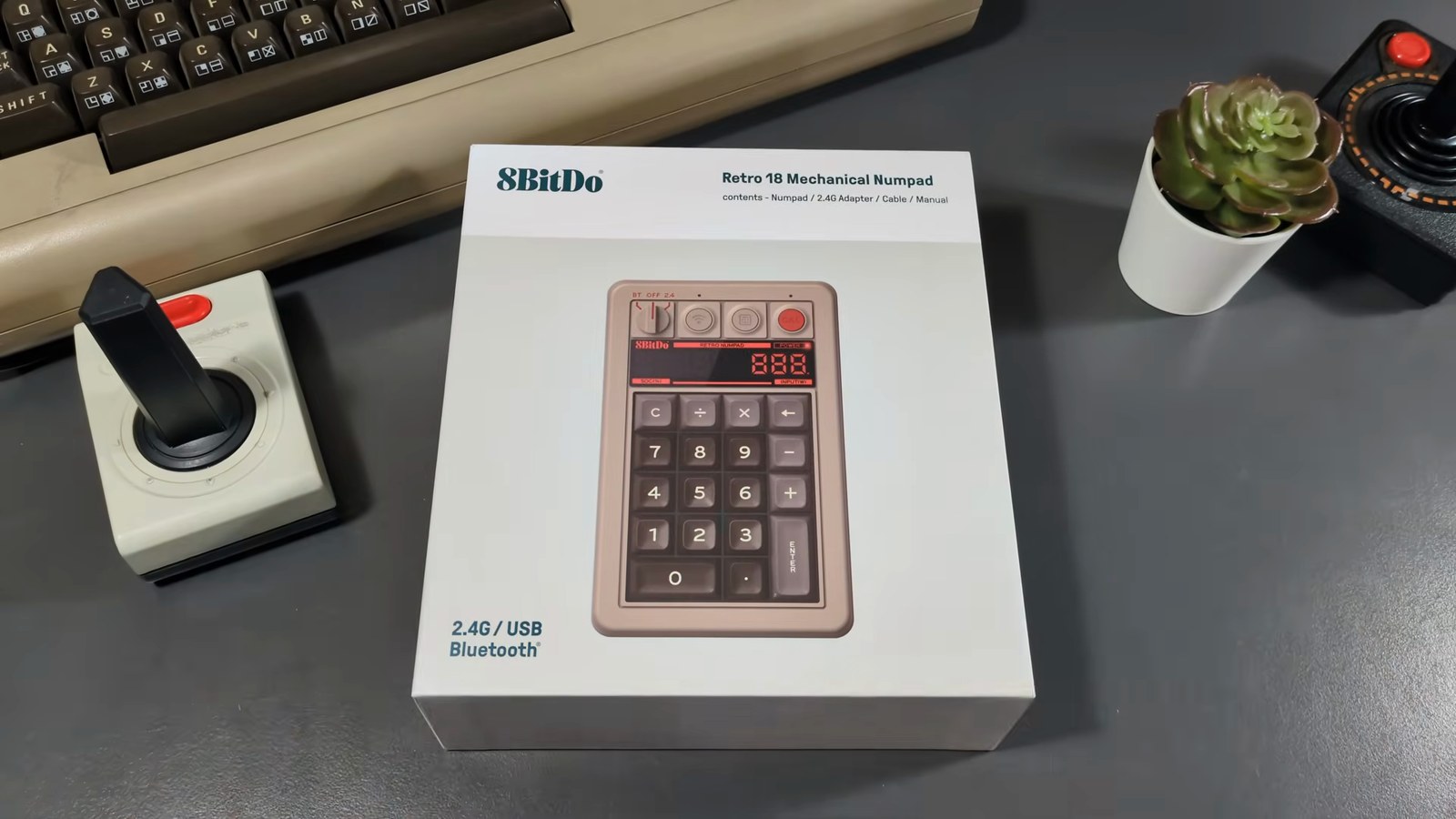
Not much, as I suspected: a USB-C to USB-A cable, an inspection slip, the instruction manual in a couple of languages, and the numpad.
DESIGN AND BUILD
Out of the box, the Retro 18 looks the part. It’s big and bulky, and like the keyboard, it looks right at home next to my real Commodore 64. The beige and brown match the keyboard perfectly.
It also sits right next to the keyboard thanks to magnets. That’s a physical magnetic attraction, not a romantic one. It keeps the numpad close to its big brother.
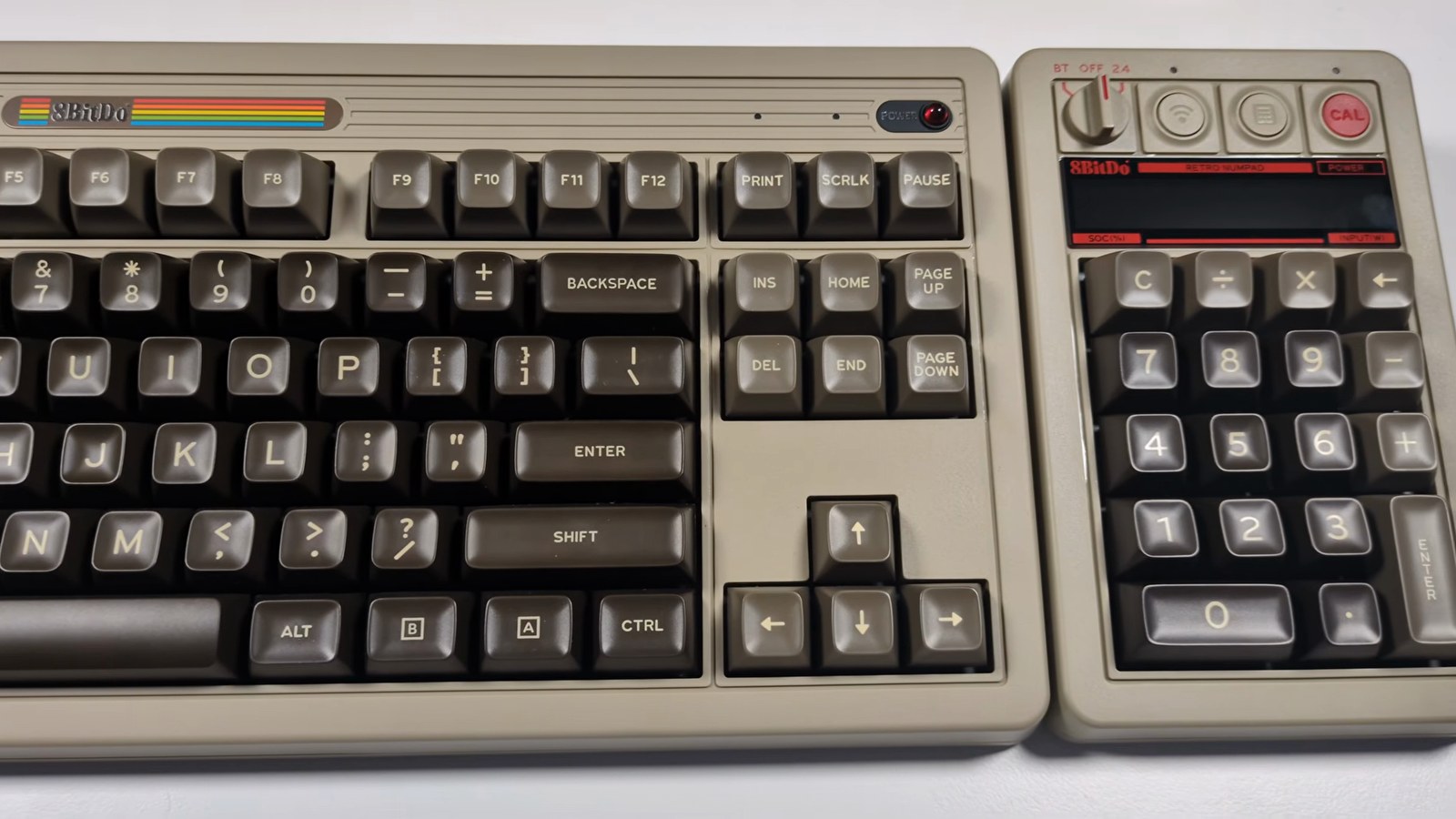
Like the keyboard, it uses Kailh Box switches with the same tactile feedback, clicky and noisy, just the way I like my keys. The keycaps are PBT plastic, so they’ll resist wear and keep that look for years. The keys are identical to the keyboard’s, with that concave face that hugs your fingertips. Besides the 18 keys, there are a few extra controls on top. More on those below.
CONNECTING IT
The numpad pairs over Bluetooth or 2.4 GHz wireless with its USB dongle. Like the keyboard, the dongle sits in its own magnetic compartment.
One catch: the keyboard and the numpad can’t share a dongle. Each dongle works only with its own device. With Bluetooth, though, both pair easily and work at the same time without taking up any ports on your computer. That’s how I connect both, and I’ve had no lag on either one.
BATTERY AND CHARGING
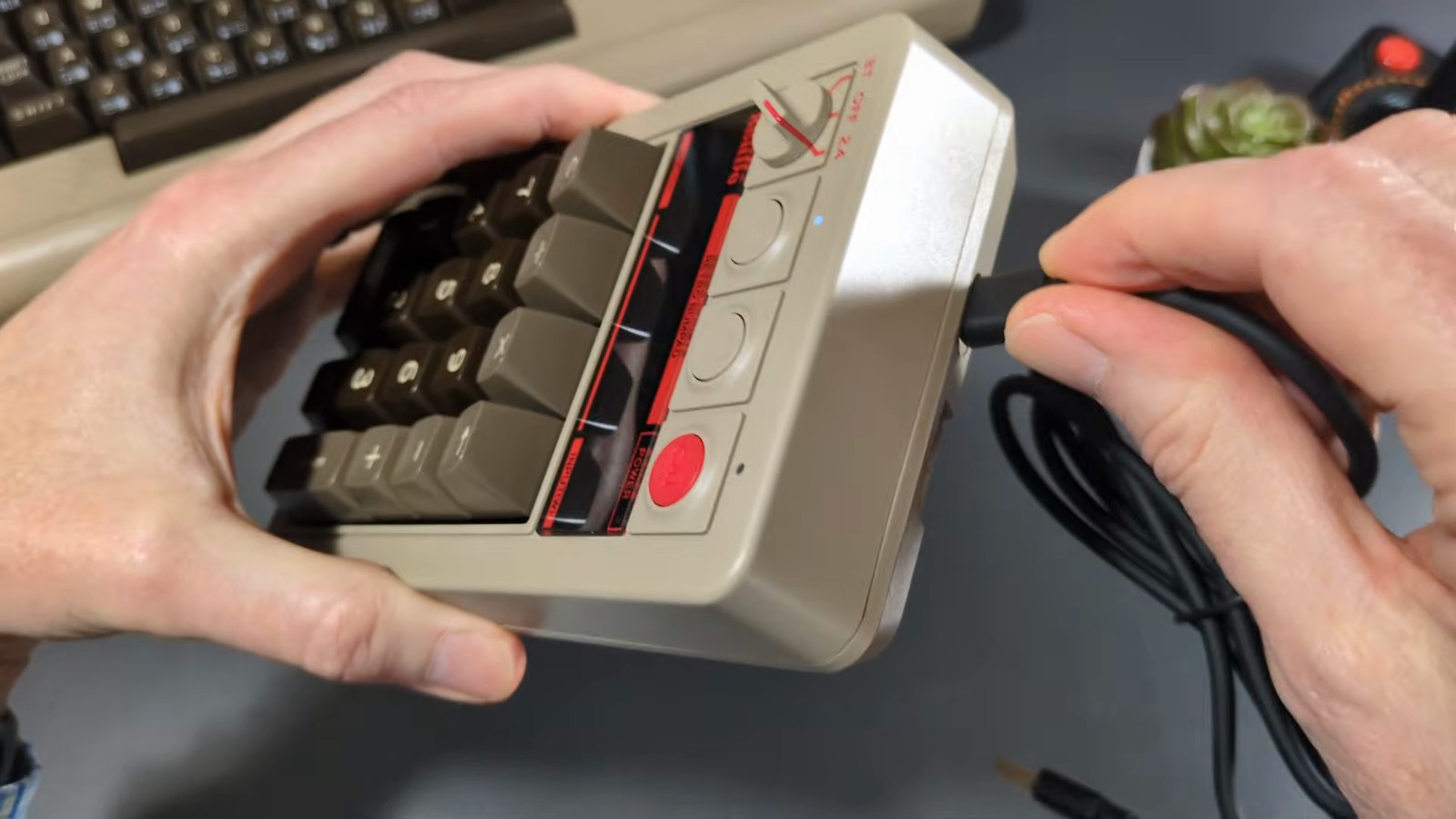
The USB-C port on the back is for a wired connection, and it’s also how you charge the internal battery. On a full charge, you should get weeks of battery life, depending on use. The LED display includes a battery power indicator.
IT’S A CALCULATOR, TOO
That red LED display takes me back to the late ’70s and early ’80s and my very first LED calculator. I wish more devices would bring back these displays.
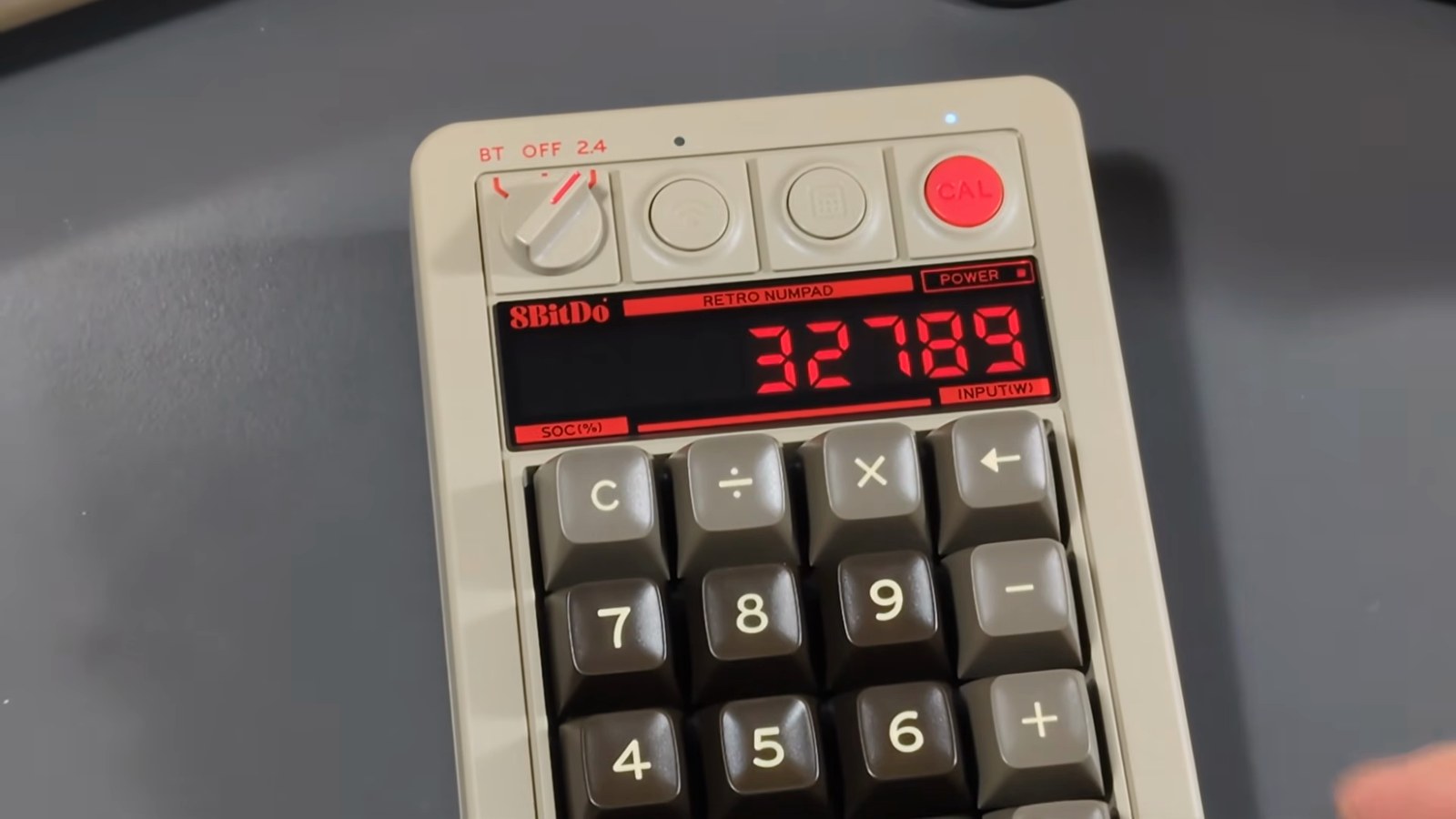
It’s not just a display. The numpad has a built-in basic calculator. (I felt like Ron Popeil selling the Pocket Fisherman.) Press the big red CAL button to use the numpad as a calculator. Press it again, and it’s back to being an input device for your computer. It’s handy for quick math without pulling out my phone or opening an app.
Two things would have made it even better: a decimal-to-hexadecimal conversion for Commodore programming sessions, and a way to send the result on the display straight to the computer. But I get it. It’s a basic calculator, and it’s a perk.
THE CONTROLS
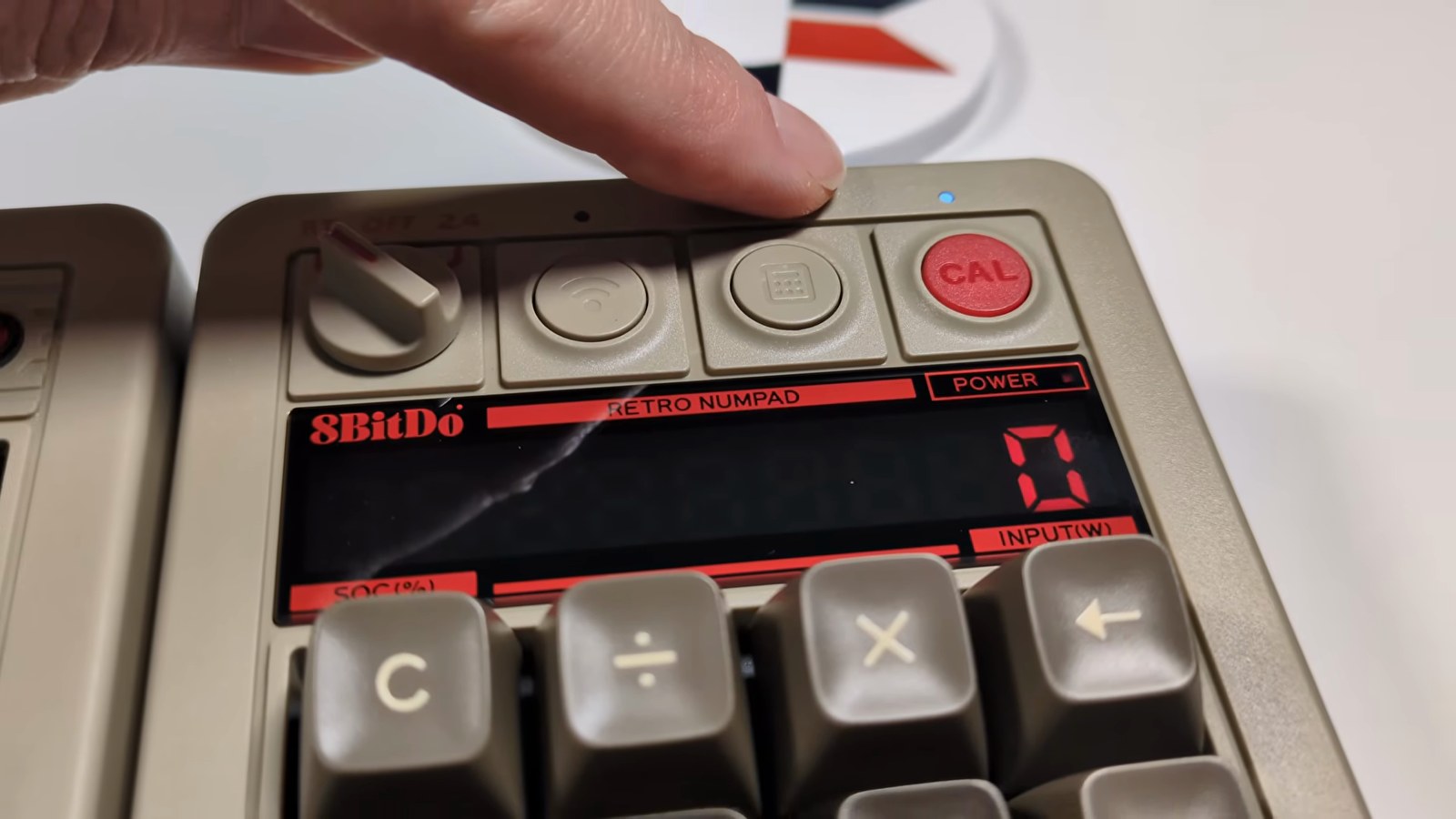
Across the top, from left to right:
- The dial: switches between Bluetooth, off, and 2.4 GHz wireless.
- The pair button: it looks a bit like a Wi-Fi symbol, but it pairs Bluetooth. Hold it for a few seconds until it flashes, then connect from your computer.
- The Windows calculator button: launches the calculator on Windows. The box says the numpad is for Windows and Android, but on my Mac everything works out of the box except this button.
- The CAL button: toggles calculator mode on and off.
Above the buttons, LED indicators show Bluetooth pairing status and when the calculator is in use. Below them is a power LED. If the battery indicator isn’t showing on the display, switch the dial from your connection to off and back again.
TIPS FOR MAC AND VICE USERS
- Mac calculator button: I haven’t tried this yet, but I think I can use BetterTouchTool to make that Windows calculator button launch the Mac calculator.
- VICE: If you use VICE, the Commodore emulator, on your PC or Mac, the numpad adds keys the keyboard is missing, which opens up more emulator options.
- Macros: If you’re into productivity macro pads, you can assign multiple functions to the keys for gaming, editing, or retro computer projects. I think it would pair well with OBS Studio.
WHY ADD IT TO YOUR DESK
If you already have the Retro Mechanical Keyboard C64, it’s an easy add. It matches the keyboard and adds the number pad that’s missing, which is perfect for number-heavy data entry or quick calculations.
If you don’t have the keyboard, it stands on its own as a retro-inspired accessory. To be fair, it’s probably a bit pricey if you just want a retro LED calculator, and it’s a basic one with no scientific functions. But it’s compact, the build quality is excellent, and it brings a bit of nostalgia to my day.
CONCLUSION
The colors, the build quality, and the extra features make the Retro 18 a good way to complete a retro desk setup. If you haven’t read about the keyboard yet, start with my 8BitDo Retro Mechanical Keyboard C64 Edition post.
Would you use the calculator, or map those keys to macros? Let me know in the comments below. If this post helped, leave a tip.
That’s it for me. retroCombs, OUT!
Comments
Comments use GitHub Discussions; sign in with GitHub to join in.