This is the 8BitDo Retro Mechanical Keyboard C64 Edition, and I love this thing. It blends that iconic Commodore 64 design with a modern mechanical keyboard and adds a few surprises, including a joystick and two big red buttons.
This post is the text companion to my short video on retroCombs Tech (@retroCombs-tech). It covers the features, the connection options, how I set it up on my Mac, the joystick, the battery, and the colors. Let’s dig in!
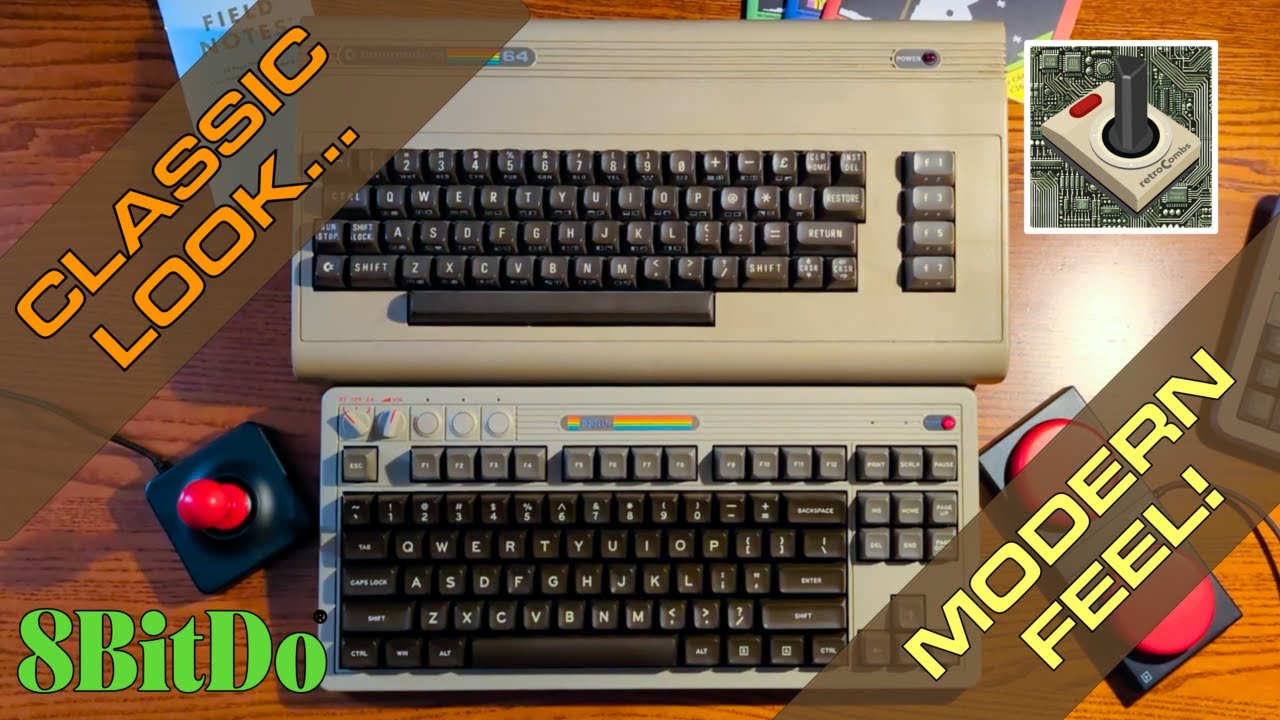
TABLE OF CONTENTS
- TABLE OF CONTENTS
- LINKS
- SUPPORT THE BLOG AND CHANNEL
- COMPANION YOUTUBE VIDEO
- THE STANDARD FEATURES
- THREE WAYS TO CONNECT
- DIALS, BUTTONS, AND INDICATORS
- USING IT ON A MAC
- THE JOYSTICK AND BIG RED BUTTONS
- BATTERY AND CHARGING
- THOSE C64 COLORS
- CONCLUSION
LINKS
- ⌨️ 8BitDo Retro Mechanical Keyboard C64 Edition: https://amzn.to/47U88dL
- 🔢 The companion numpad: 8BitDo Retro Mechanical Numpad (video: https://youtu.be/bwqATwW56ZQ)
Disclosure Statement: When you click on links to various merchants on this site and make a purchase, this can result in this site earning a commission. Affiliate programs and affiliations include, but are not limited to Amazon and the eBay Partner Network.
I bought this keyboard myself.
SUPPORT THE BLOG AND CHANNEL
Check out the supporters page to learn about my supporters and how you can join our community. If this post saved you some time, you can also leave a tip. And if you like gadgets, subscribe to @retroCombs-tech. Hooked on tech since ‘73.
COMPANION YOUTUBE VIDEO
Title: ⌨️️ Watch This 8BitDo C64 Keyboard Bring Computing History to Life!
 Watch This 8BitDo C64 Keyboard Bring Computing History to Life!
THE STANDARD FEATURES
- 87 keys, including function keys, in a sturdy plastic frame that pays homage to the original C64
- PBT keycaps with a textured, durable feel that resists wear
- Kailh Box switches, known for their durability and tactile feedback
I really like how these keys look, feel, and, more importantly, sound.
THREE WAYS TO CONNECT
- Bluetooth. This is how I connect to my Mac. The connection has been rock solid, with no lag and no issues.
- 2.4 GHz wireless. It uses the included USB receiver, which sits in a magnetic compartment on the keyboard.
- USB-C cable. Not exactly old school, but it’s a cable.
DIALS, BUTTONS, AND INDICATORS
A rotary dial toggles through the connection modes, and it sits next to a volume dial. Next to the dials are:
- a pair button for Bluetooth connections
- a fast key mapping button for quick remapping
- a profile button to switch between key configurations
There are indicators for connection status, key mapping, and the active profile, along with programmable keys for custom functions.
USING IT ON A MAC
I use this keyboard during my retro computer livestreams, and it’s always a hit when viewers catch a glimpse of it. The classic power status indicator is a conversation starter.
To make it work better with my Mac, I swapped the Meta and Alt keys in macOS System Settings under the keyboard settings. Unfortunately, the 8BitDo software isn’t available for macOS right now. Everything still works. My only nitpick is that I wish it had a Mac-specific keycap for Command, but my muscle memory handles that.
THE JOYSTICK AND BIG RED BUTTONS
The most unusual part of this keyboard is the separate joystick and two very large red buttons. A magnet holds the two units together, and both have a non-slip base so they don’t slide around the table while you play. With the 8BitDo software, you can make the joystick and buttons trigger macros.
I’m still figuring out how to use them, especially on my Mac without the software. When the software is available, I’ll try to get them working with VICE, the Commodore emulator.
BATTERY AND CHARGING
A built-in rechargeable battery powers the keyboard. On a full charge, you can expect several weeks of use, depending on how much you type. When it gets low, plug it into your computer with the included USB-C cable.
THOSE C64 COLORS
One thing I really love is how closely it matches the original Commodore 64’s colors. The beige and brown are nearly identical, which brings back that classic feel even when I’m working in modern applications. Even the badge is a nod to the original C64 badge. Commodore fans will notice details like that.
CONCLUSION
If you like retro looks but don’t want to give up modern features, the 8BitDo Retro Mechanical Keyboard C64 Edition is worth a look. Want to complete the setup? Check out my post on the matching 8BitDo Retro Mechanical Numpad.
Are you typing on one of these, and have you found a use for the joystick and red buttons? Let me know in the comments below. If this post helped, leave a tip.
That’s it for me, retroCombs, out.
Comments
Comments use GitHub Discussions; sign in with GitHub to join in.