
My ZX Spectrum Next arrived in February 2024 after a three-year wait. I unboxed it live, and then I didn’t touch it. When folks asked how I liked it, I had to admit I had no earthly idea. So I went live again with the little Quick Start Guide card that comes in the box and worked through it on camera, tiny print and all.
Issue 3 machines are on their way to backers, so a lot of you are about to have the same “now what?” moment I did. This post is the text companion to that video. It follows the Quick Start card step by step and adds what I’ve learned since: the confusing “Issue” naming, SD card prep, video modes, Wi-Fi, the keyboard shortcuts, the NextBASIC type-in program, downloading games, the Raspberry Pi Zero accelerator, and what Issue 3 owners should know. I’ve also corrected the things I got wrong on camera. Let’s dig in!
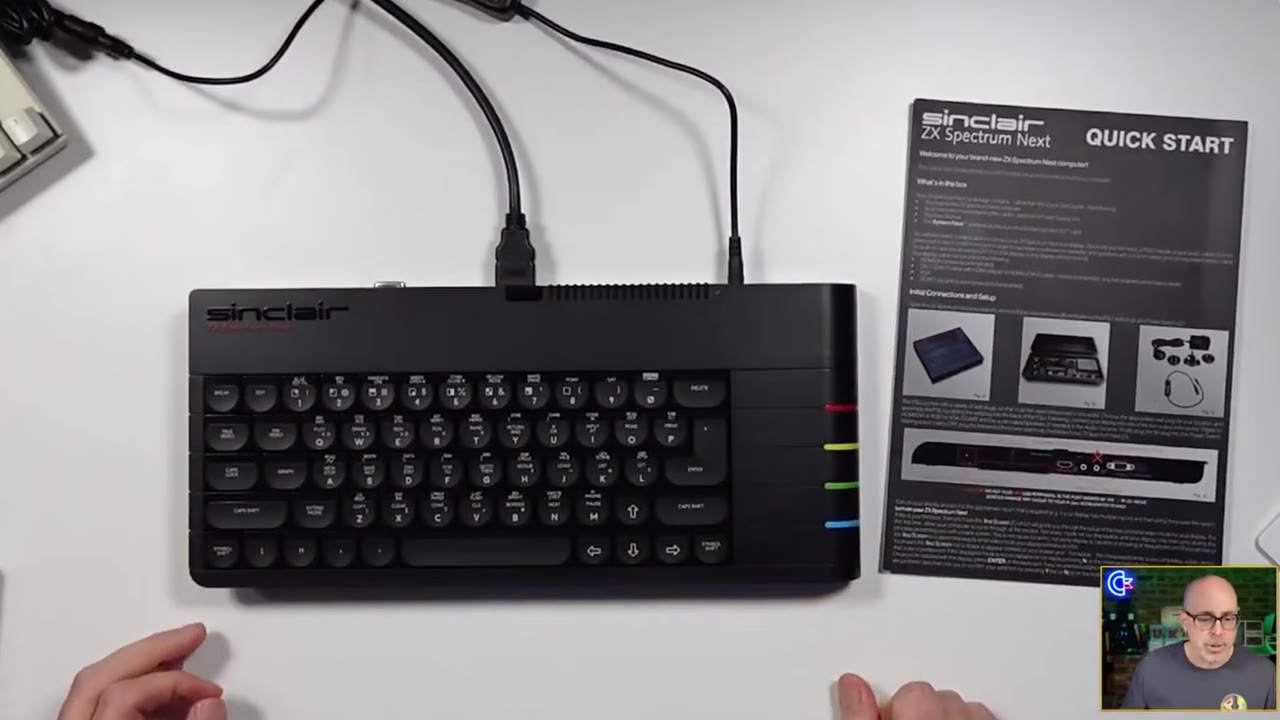
TABLE OF CONTENTS
- TABLE OF CONTENTS
- LINKS
- SUPPORT THE BLOG AND CHANNEL
- COMPANION YOUTUBE VIDEO
- VIDEO ERRATA
- UPDATES SINCE THE VIDEO
- WHICH “ISSUE” DO I HAVE?
- BEFORE YOU POWER ON: SD CARD PREP
- FIRST BOOT AND VIDEO MODES
- THE REAR PORTS
- CPU SPEED, CLOCK, AND WI-FI
- KEYBOARD, BUTTONS, AND SHORTCUTS
- NEXTBASIC: EDITOR MODES AND A FIRST PROGRAM
- DOWNLOADING GAMES WITH ZXDB-DL
- ADD A RASPBERRY PI ZERO
- ISSUE 3: WHAT NEW OWNERS SHOULD KNOW
- EXTRA TIPS AND TRICKS
- SOURCES
- CONCLUSION
LINKS
Below are the links you need to get the most out of your ZX Spectrum Next.
Video Mention Links
- 📘 ZX Spectrum Next User Manual, first edition (official page): https://www.specnext.com/zx-spectrum-next-user-manual-first-edition/
- 💾 Latest System/Next distribution (official): https://www.specnext.com/latestdistro/
- 🎮 ZXDB downloader by em00k: https://github.com/em00k/next-zxdb-downloader
- 📺 My live unboxing of the ZX Spectrum Next: https://www.youtube.com/watch?v=yuD-Q8eZbBQ
- 📺 My NextPi Zero accelerator install video: https://www.youtube.com/watch?v=06S6ZSgc-w0
ZX Spectrum Next Accessories
- 🧠 microSD Cards: https://amzn.to/3IYL3Kn
- 🚠 HDMI Cables: https://amzn.to/4c2vhM9
- 🕹️ Hyperkin Trooper (the joystick I use in the video): https://amzn.to/3l1CHXj
- 🔊 3.5mm Shielded Cables: https://amzn.to/3VBsBPL
- 🔈 Edifier Speakers: https://amzn.to/3vymO2G
- 🔈 Budget Speakers: https://amzn.to/3J2PyDX
- 🔌 USB-C to Micro USB Adapter (handy if you add a Pi Zero): https://amzn.to/3Wkxxrr
- 📺 Prison TVs on eBay (small CRTs for VGA or RGB setups): https://ebay.us/jTv90O
- 👚 Sew Ready Covers (tell Maggie retroCombs sent you!): https://ebay.us/EFNZGp
When you click on links to various merchants on this site and make a purchase, this can result in this site earning a commission. Affiliate programs and affiliations include, but are not limited to Amazon and the eBay Partner Network.
ZX Spectrum Next Resources
- SpecNext official site: https://www.specnext.com/
- ZX Spectrum Next User Manual, 3rd edition (online, on Explorer): https://explorer.specnext.dev/documentation/manual/rev3/chapter/zx-spectrum-next-home-computer
- SpecNext wiki FAQ: https://wiki.specnext.dev/FAQ
- Issue 3 Kickstarter (FAQ tab): https://www.kickstarter.com/projects/spectrumnext/zx-spectrum-next-issue-3-0/faqs
- System/Next distribution on GitLab: https://gitlab.com/thesmog358/tbblue
- NextZXOS change log: https://gitlab.com/thesmog358/tbblue/-/raw/master/docs/nextzxos-changelog.txt
- Spectrum Computing (game database): https://spectrumcomputing.co.uk/
SUPPORT THE BLOG AND CHANNEL
Check out the supporters page to learn about my supporters and how you can join our community. If this post saved you some time, you can also leave a tip.
COMPANION YOUTUBE VIDEO
Title: 🤪 This ZX Spectrum Next is WILD! QUICK START GUIDE Overview.
 This ZX Spectrum Next is WILD! QUICK START GUIDE Overview.
This video is an edit of two livestreams. If you want to catch the next one live, become a channel member and join the conversation.
VIDEO ERRATA
As of 2026-10-22:
- “Issue 2” (title and throughout): I call my machine an “Issue 2.” That’s the name of the second Kickstarter campaign (KS2). The mainboard inside KS2 machines is a different revision called Issue 4. See Which “Issue” do I have? below. (Explorer registers; Retro Isle)
- “The SP32 that’s in this thing” (~13:55): The Next’s Wi-Fi module is an ESP8266, not an ESP32. (User Manual, 3rd ed.)
- The Wi-Fi firmware update (~13:18): I picked option 7 without knowing what it did. It updates the ESP Wi-Fi module’s firmware, and my version stayed at 1.2. Don’t copy me. The FAQ warns that ESP updates can brick the module, and on KS2 boards the ESP is soldered on. (SpecNext wiki FAQ)
- “The VIC-20 had a 23 column” screen (~20:15): The VIC-20 shows 22 columns by 23 rows. I mixed up the two numbers. (Wikipedia: VIC-20)
- “Jet Set Willie” (~36:12): It’s Jet Set Willy. (Spectrum Computing)
- “TZX or ZX or Z80” (~36:54): The formats listed were TZX, TAP, and Z80. (SpecNext wiki: File Formats)
- The Jet Set Willy load failure (~37:25): I most likely picked a TZX file. The loader asked me to choose a TZX load mode, and the FAQ says TZX files need a Raspberry Pi Zero accelerator or an external TZX player. NextZXOS loads TAP and Z80 directly. I can’t confirm that from the footage alone, so treat it as my best guess. (SpecNext wiki FAQ; File Formats)
- “I don’t know that I’ll ever do that” (~7:32, about the Pi Zero): I did! See Add a Raspberry Pi Zero.
- F11 and F12 (~17:58): I read the card as saying F11 and F12 on a PS/2 keyboard turn the expansion bus off and on. I can’t confirm that. The official PS/2 keyboard page lists only F1 to F10, and the core’s register notes describe “F5/F6 expansion bus hotkeys.” If you need the expansion bus hotkeys, check the current official docs rather than my reading of the card.
UPDATES SINCE THE VIDEO
- Firmware and software: The video shows firmware 1.44 and core 3.02.00. My Next now runs System/Next 24.11, which is NextZXOS 2.09 with core 3.02.01 for Issue 4 boards and 3.02.00 for Issue 2 boards. You can’t install 24.11 from the built-in update menu, so it takes a full SD card rebuild. See SD card prep. (Latest distro)
- Issue 3 happened: The third Kickstarter ran from July 19 to August 18, 2025, and 7,524 backers pledged £2,612,335. (Kickstarter) By late August 2026, finished machines were on boats heading to regional distribution hubs. They hadn’t shipped to individual backers yet. (SpriteFountain, Aug 31 2026)
- I wondered about a C64 core (~24:17), and here it is: Issue 3 adds fully licensed Sinclair QL and Commodore 64 cores. In SpecNext’s words, “the Next Issue 3 can run all the software for the Sinclair QL and the C64 straight out of the box.” (SpecNext announcement)
- I installed a Pi Zero after all: In August 2025 I added the Raspberry Pi Zero accelerator. (my NextPi video)
WHICH “ISSUE” DO I HAVE?
This confused me, and it confuses a lot of people. “Issue” gets used for two different things: the Kickstarter campaign and the mainboard revision.
- KS1 (2017) machines use the Issue 2 board.
- KS2 (2020), the campaign called “Issue 2,” shipped the Issue 4 board. That’s my machine.
- KS3 (2025), the campaign called “Issue 3,” ships a board that reports itself as Issue 5.
So when I say “my Issue 2” in the video, I mean my KS2 machine, which has an Issue 4 board.
| KS1 (board Issue 2) | KS2 “Issue 2” (board Issue 4) | KS3 “Issue 3” (board Issue 5) | |
|---|---|---|---|
| Kickstarter | 2017 | 2020 | Jul–Aug 2025 |
| FPGA | Xilinx Spartan-6 XC6SLX16 | Xilinx Artix-7 XC7A15T | Xilinx Artix-7 XC7A35T, “almost 3X the size of the Issue 2 Next” |
| RAM | 1MB (512KB plus a stretch goal) | 2MB | 2MB as standard |
| SD card slots | One | One | Two, both available to the OS |
| VGA out | Standard | Standard | Upgraded to support more colours |
| Expansion port | Standard | Standard | Adds +3 disk signals |
| Official extra cores | Licensed QL and C64 cores |
Sources: Explorer registers (board IDs and FPGAs), Retro Isle (board history, campaigns, and RAM), Issue 3 Kickstarter FAQ (Issue 3 changes), and the SpecNext announcement (cores).
Note: The User Manual explains that on Issue 2 boards, the real-time clock, Wi-Fi module, extra RAM, and Raspberry Pi Zero accelerator were optional, and most of those are standard on Issue 4. “If on the other hand, you have an Issue 4, the only feature you may be interested in is the Raspberry Pi Zero accelerator.” (User Manual, 3rd ed., p. 220)
BEFORE YOU POWER ON: SD CARD PREP
This isn’t in the video, but it’s the first thing I’d tell a new owner.
- FAT32 only (or FAT16/FAT12). The Next does not read exFAT or NTFS. Windows’ GUI formatter and the SD Association formatter force exFAT on cards of 32GB or larger. On Windows, format from the command line instead:
format X: /FS:FAT32, whereX:is your card. (SpecNext wiki FAQ) - Rebuilding the card for 24.11. The official steps are to start with an empty card, copy
QXL.WINfirst, copy all the remaining files, and then eject the card properly. (Latest distro) - Core updates. The latest-distro page explains what to do if your core is older than the distro expects: press U at power-up, type Y to confirm, and then power off and disconnect all cables. (Latest distro)
- Check version numbers, not post dates. The FAQ points out that the distro page’s WordPress date doesn’t change when the page is edited. (SpecNext wiki FAQ)
Warning: Some TVs keep the Next powered through the HDMI cable. After a firmware or core update, remove ALL cables so the Next fully powers off. (SpecNext wiki FAQ)
FIRST BOOT AND VIDEO MODES
There’s no power button. The power supply has an inline switch, which was a Kickstarter stretch goal, so plug everything in first (yes, including the HDMI cable, unlike me) and then flip the switch.
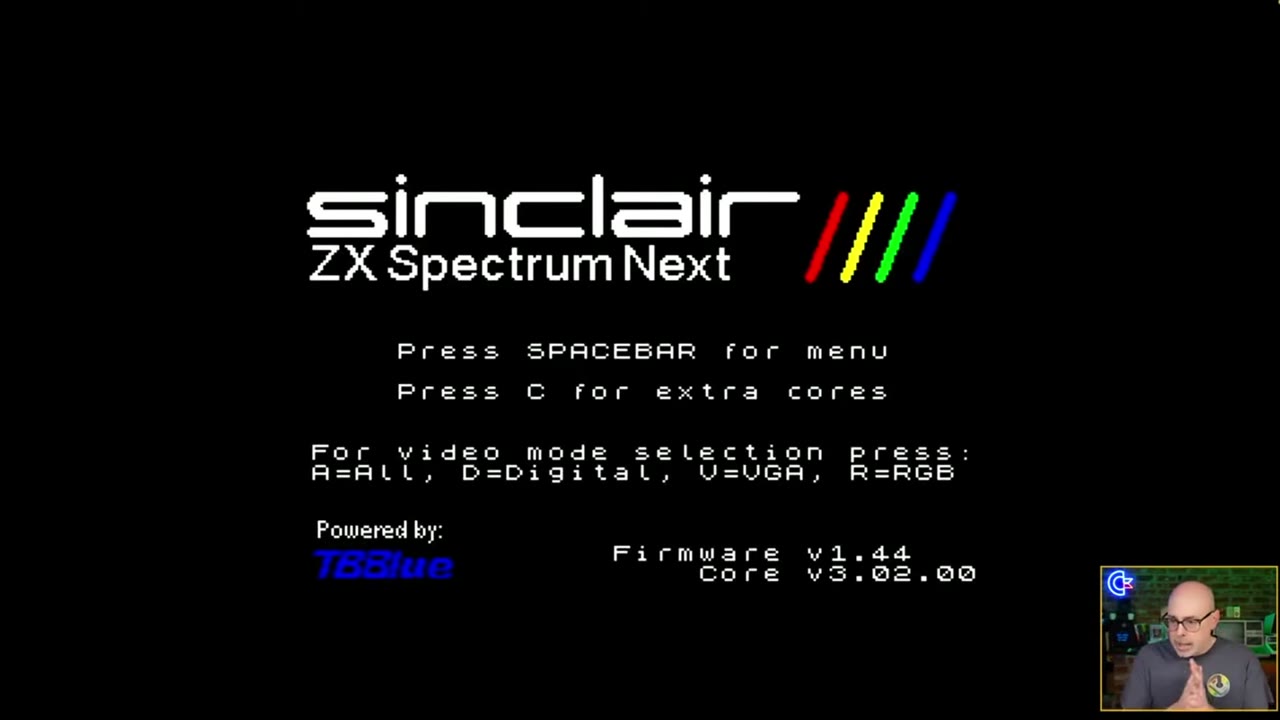
The boot screen shows your firmware and core versions. It also lists the keys you can press: SPACEBAR for the menu, C for extra cores, and A, D, V, or R to pick a video mode (All, Digital, VGA, or RGB).
- Choosing a video mode: On first boot, the Next shows a test screen so you can pick the mode your display handles. It also plays a tone. If your display locks onto more than one mode, choose the one where you can hear the tone. (SpecNext wiki FAQ)
- VGA: Hold V at boot. VGA0 is the preferred mode because its timing is the most accurate. (SpecNext wiki FAQ)
- HDMI and timing-sensitive games: Some games and demos that use multicolour or border effects need exact Spectrum timing. They won’t display properly over HDMI and need a VGA or RGB display. That’s a hardware limit, not a fault in your machine. (SpecNext wiki FAQ)
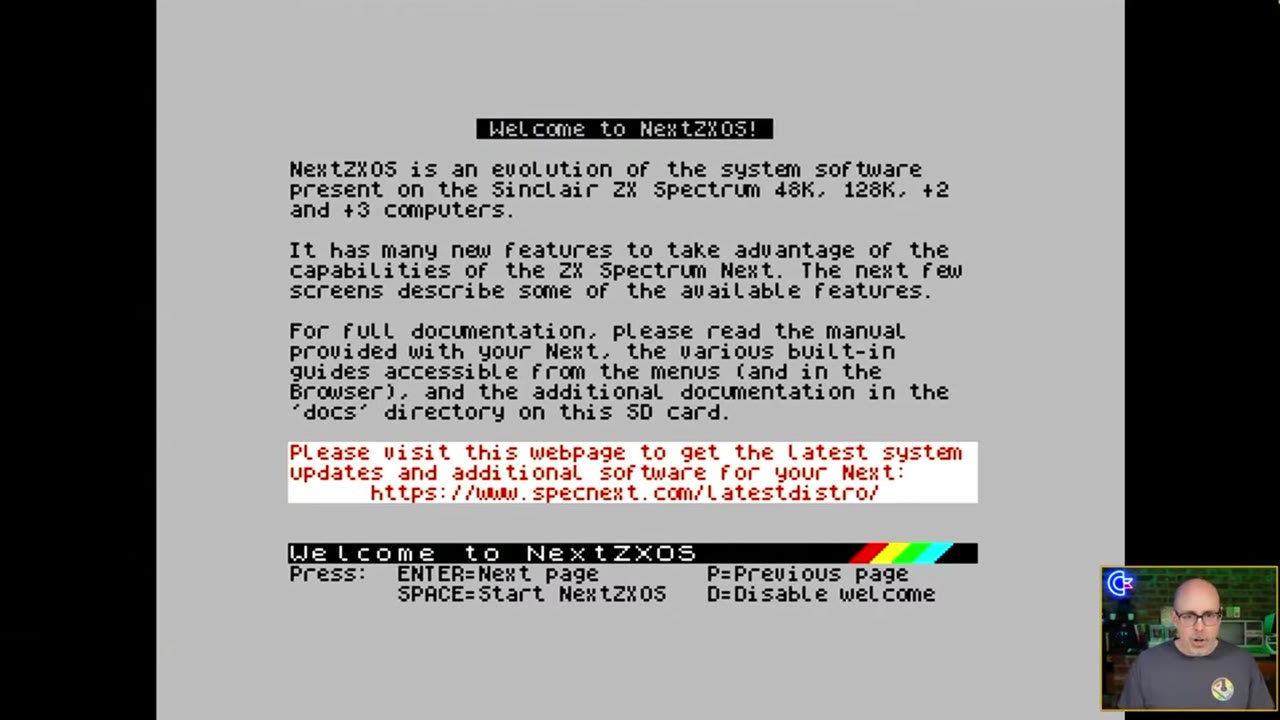
Next comes the Welcome to NextZXOS pages. ENTER goes to the next page, P goes back, SPACE starts NextZXOS, and D turns off the welcome screens. ENTER and P sit right next to each other, which helps.
THE REAR PORTS
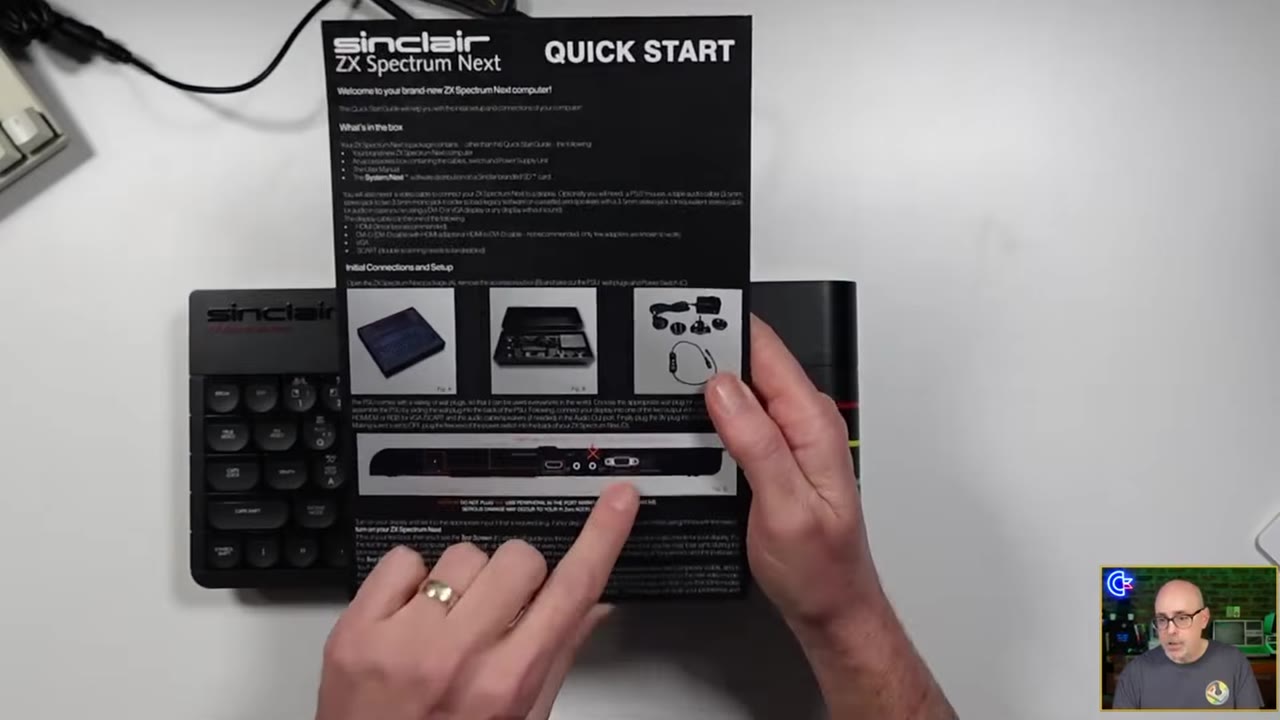
The card shows the ports on the back: EAR/MIC, audio out, VGA, PS/2 keyboard and mouse, and HDMI. There’s also a big X that says don’t plug USB peripherals in there. Those ports belong to the optional Raspberry Pi Zero accelerator. The joystick ports are on the front, nicely placed.
- Loading real cassettes: The Next’s EAR/MIC socket needs a 3.5mm plug of the “stereo” (TRS) type, because the signal travels on the ring. A mono plug won’t work. Use More > Tape Tester to find the right volume before you load. (SpecNext wiki FAQ)
- PS/2 mouse: I picked up a free PS/2 mouse at World of Commodore. If a PS/2 keyboard doesn’t work, see Extra Tips.
CPU SPEED, CLOCK, AND WI-FI
In the NextZXOS menu, the up and down arrows move through the options and the left and right arrows change the CPU speed. You can also toggle the speed with NMI+8 (3.5, 7, 14, or 28MHz). (SpecNext wiki FAQ)
Set the Clock
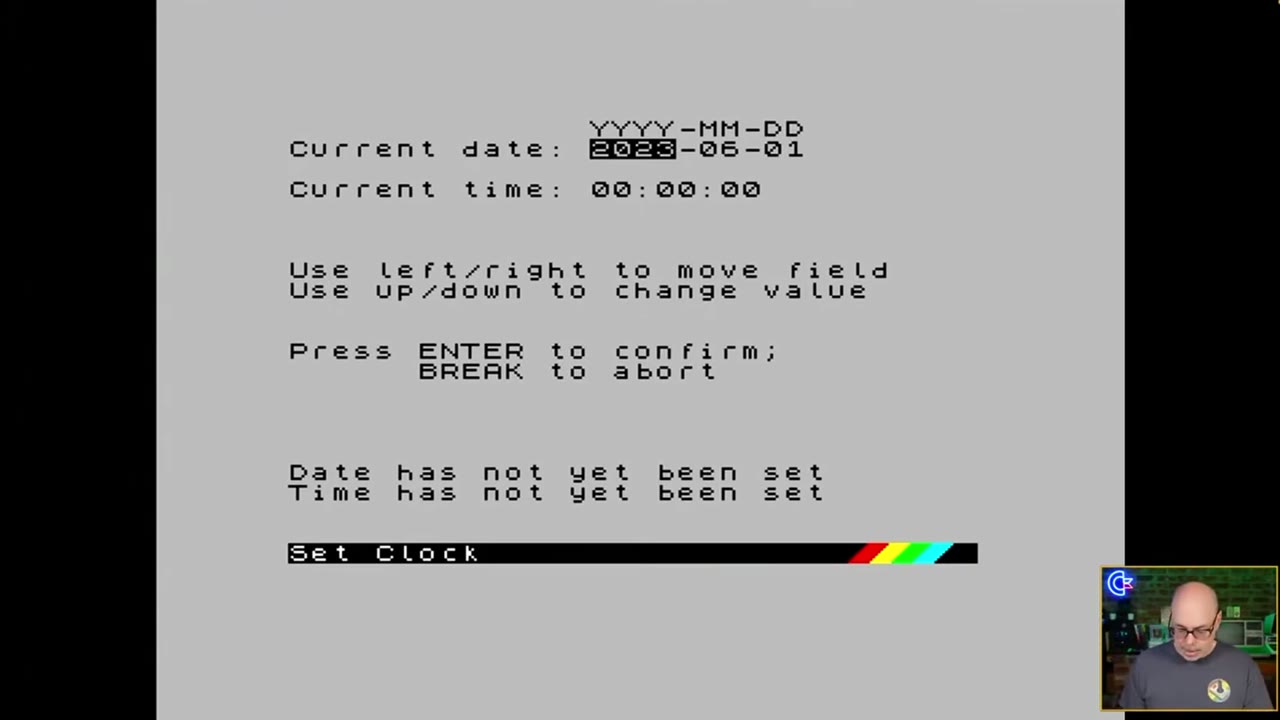
Go to More > Tools and choose the clock. Left and right move between fields, up and down change the values, and ENTER confirms. It’s a 24-hour clock. Check the year, because I set mine to 2023 by mistake. Once it’s set, the date and time appear at the bottom of the NextZXOS menu.
Connect to Wi-Fi
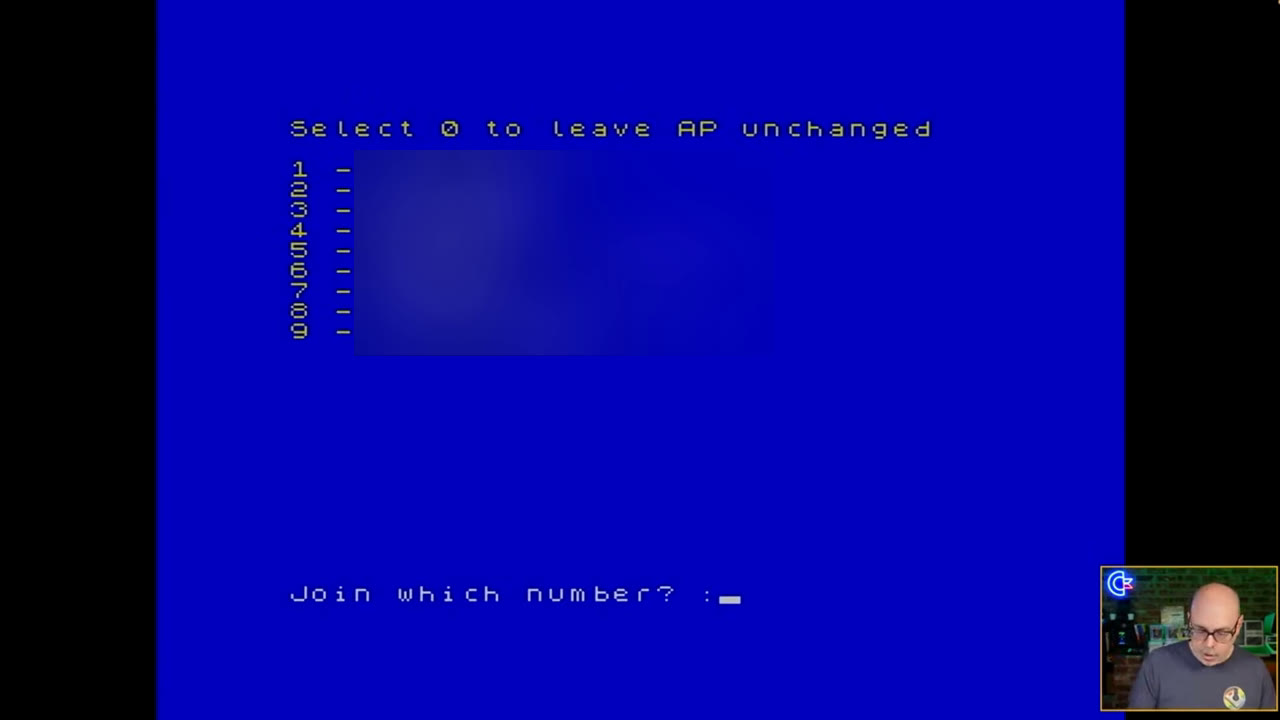
Wi-Fi setup is also under More > Tools. Option 5 scans for networks (I had to press ENTER before the scan finished), and then you pick a network by number and type the password. The password shows on screen as you type, so don’t do this on a livestream like I almost did.
Tip: The Next’s ESP Wi-Fi module only connects to 2.4GHz networks, and your password can’t contain spaces. If setup fails, run
wifi2.basfrom/apps/wifi/setup. To check that you’re online, go to the command line, type.uart, and sendAT+CIFSR. It should return your IP address. (SpecNext wiki FAQ)
Warning: Leave option 7, the Wi-Fi firmware update, alone unless you know you need it. KS machines shipped with ESP firmware 1.2.0.0, which works. A failed update can brick the ESP, and on KS2 boards it’s soldered on. (SpecNext wiki FAQ)
KEYBOARD, BUTTONS, AND SHORTCUTS
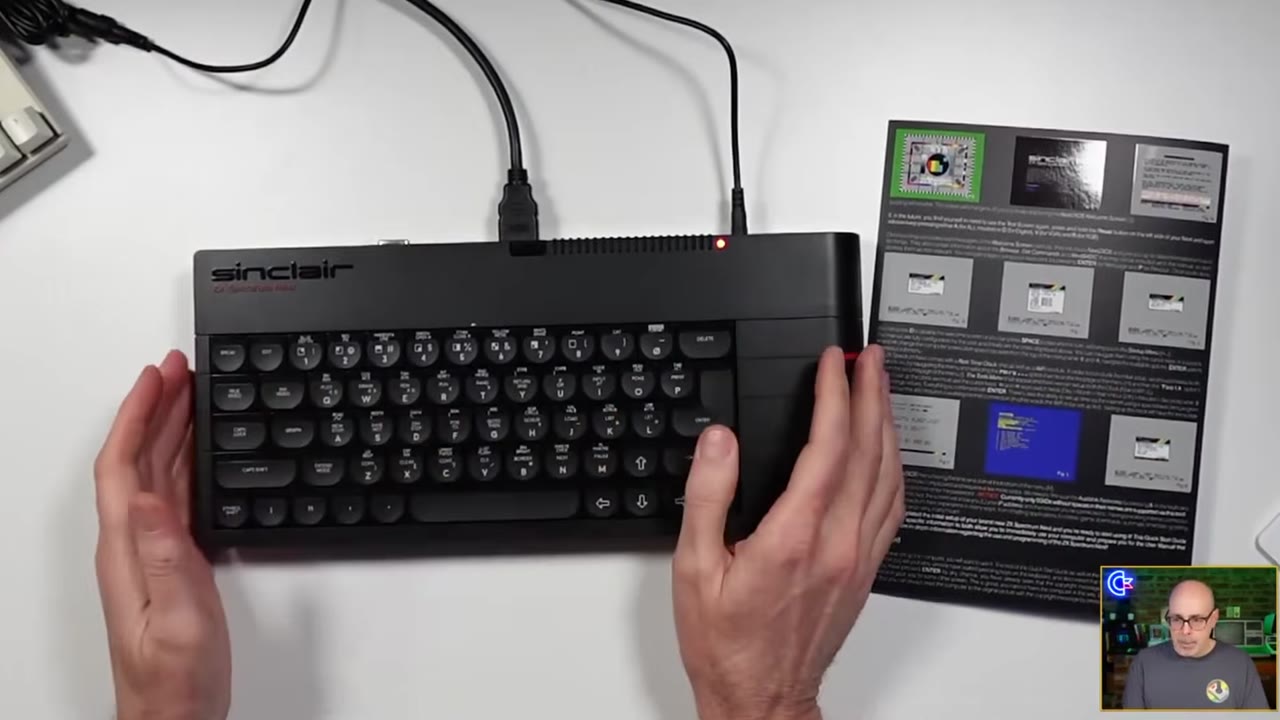
The keyboard isn’t a MEGA65 keyboard, but as we say in Kentucky, it ain’t bad. The concave keys feel good. The layout is the hard part: there’s no colon where my pinky expects one, and the symbols hide behind Symbol Shift. You’ll find Break, True Video, Inv Video, Graph, Caps Shift, Extend, and Symbol Shift.
- BREAK works like Escape. A viewer taught me this live: when you’re stuck in the browser, BREAK gets you back to the menu.
- Typing symbols: Hold Symbol Shift. In the video,
=and-(Symbol Shift+J) were the ones I hunted for.
The three buttons on the left side:
- Reset: Tap for a soft reset or hold for a hard reset.
- NMI: Hold it and press a number key for the shortcuts below.
- Drive: Triggers the DivMMC, the hardware that manages the SD card.
| Shortcut | What it does |
|---|---|
| NMI + 1 | Hard reset |
| NMI + 2 | Toggle the scan doubler |
| NMI + 3 | Toggle 50/60Hz |
| NMI + 4 | Soft reset |
| NMI + 7 | Toggle scanlines (25/50/75%) |
| NMI + 8 | Toggle CPU speed (3.5/7/14/28MHz) |
| NMI + 9 | NMI menu |
Source: SpecNext wiki FAQ. On a PS/2 keyboard, F1 to F10 do the same jobs as NMI+1 to NMI+0. (SpecNext PS/2 keyboard page)
Tip: In the NextZXOS browser (NextZXOS 2.07 and later), press O to sort by date, size, or none, and press + (Symbol Shift+K) to flip between ascending and descending order. (SpecNext wiki FAQ)
NEXTBASIC: EDITOR MODES AND A FIRST PROGRAM
Choose NextBASIC from the opening menu. Commands are typed letter by letter, not with the single-key keywords of the original Spectrum. The cursor is a flashing blue-and-white block.
- Column modes: NextBASIC supports 32, 64, and 85 columns. The 64- and 85-column modes use the Timex hi-res screen modes, so they’re monochrome. Only 32 columns gives you colour.
- The footer bar shows which part of the system you’re in. Below it, a two-line status area shows messages and errors.
- The EDIT key opens a menu with screen size, a screen option that switches between the full editor and the lower screen, renumber, clear, and the guide, which is the built-in documentation.
- Calculator: It’s in the main menu. The
+sign is Symbol Shift+K.
The Quick Start Type-In Program
Here’s the program from the card, as I ended up running it. You’ll start with STEP 10 like I did, and then the card has you change line 10 to STEP 7:
10 FOR f=1 TO 255 STEP 7
20 PLOT 0,0: DRAW f,175: PLOT 255,0: DRAW -f,175
30 NEXT f
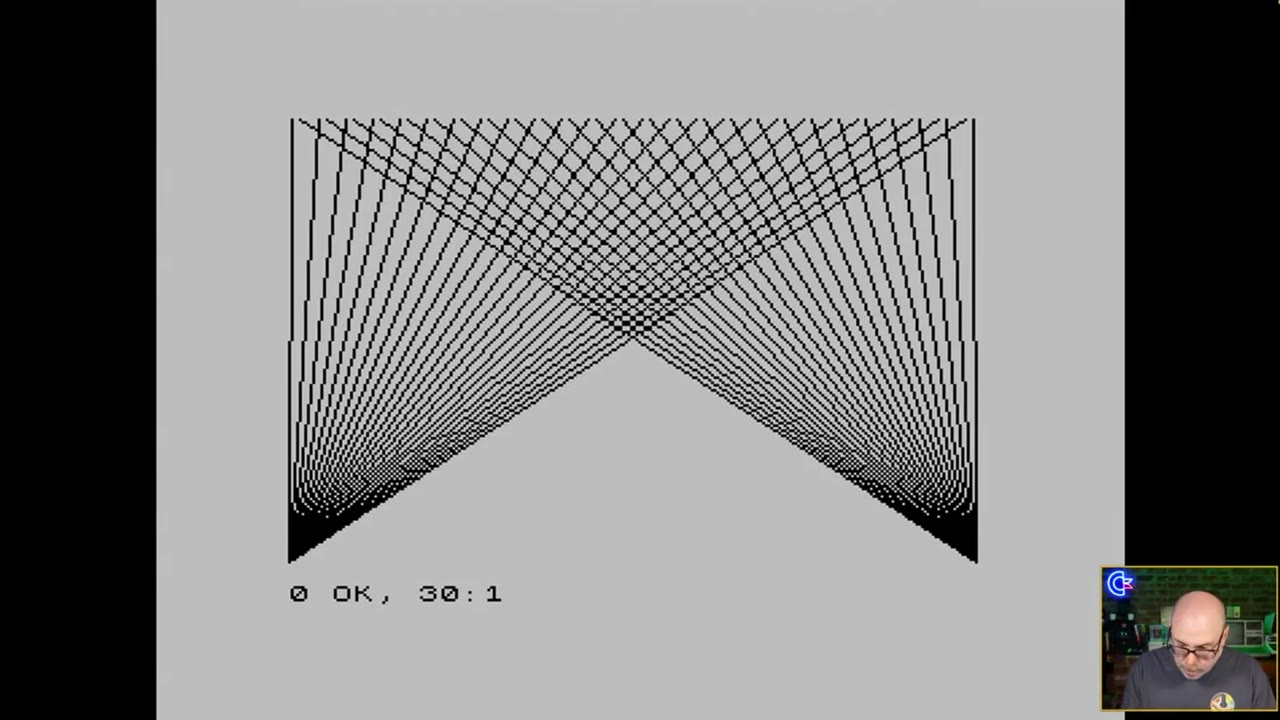
What I learned typing it in:
- When you press ENTER, the line turns uppercase and is colour coded (cyan is usually numbers).
- Listen for the beep. A high beep means the line was accepted, and a low beep means something’s wrong with it. Turn your volume up so you can hear it.
- Go back up to a line to edit it.
- Don’t worry when line 20 wraps onto the next screen line. The editor handles it.
- The
0 OK, 30:1report at the bottom means the program finished normally. - GO TO 10 vs RUN: After the STEP 7 change, the card has you type
GO TO 10, which redraws right on top of the first picture. When I typedRUN, the screen cleared before the drawing started.
DOWNLOADING GAMES WITH ZXDB-DL
This is the part that made me say “this is going to be a fun machine.” With Wi-Fi set up, you can search an online game database and download straight to your SD card, without a PC.
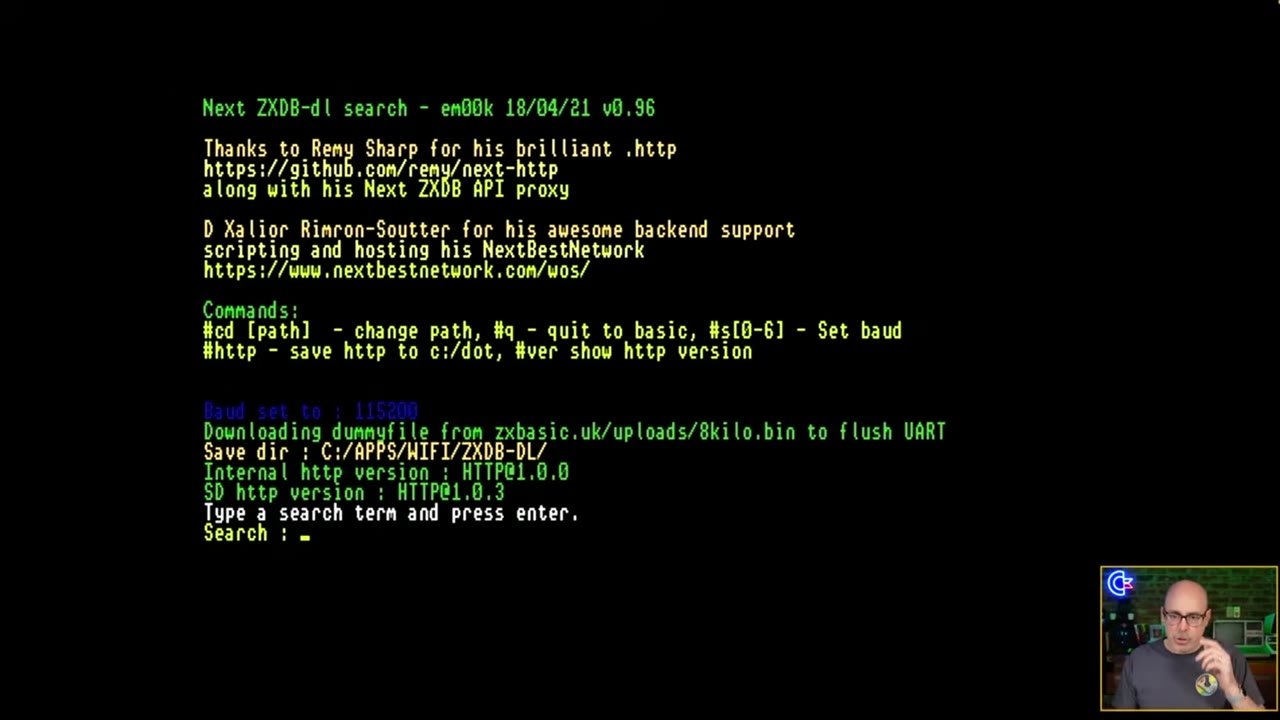
- Open the Browser and go to
apps/wifi/zxdb-dl. The FAQ’s quick Wi-Fi test is to launchzxdb-loader.basfrom that folder. (SpecNext wiki FAQ) - Type a search term and press ENTER.
- Pick a result, press ENTER to download and play, or press C to change the save folder.
Tip: Choose a TAP or Z80 version when the database has one. NextZXOS loads
.tapand.z80directly. TZX files need a Raspberry Pi Zero accelerator or an external TZX player, which is probably why my Jet Set Willy download failed. (SpecNext wiki: File Formats; SpecNext wiki FAQ)
Joysticks
In ZXDB-dl, the arrow keys did the work and my joystick didn’t. In games, the Next uses Atari-standard sticks and also supports Sega Mega Drive pads.
- Defaults: The left port is Kempston1 and the right port is Sinclair1. Change them with NMI > Settings > Joysticks. To make the change permanent, hold SPACE at the boot screen and press E. (SpecNext wiki FAQ)
- Fire buttons: Only two fire buttons work on non-Sega pads. That’s a hardware limit. (SpecNext wiki FAQ)
Warning: Don’t use Sinclair-branded SJS-1 joysticks on the Next. Their wiring shorts the 5V line to ground and can damage the machine. If your joystick has a black plug and a grey plug, don’t use the grey one. (SpecNext wiki FAQ)
ADD A RASPBERRY PI ZERO
In the video I said I didn’t know that I’d ever add the Pi Zero accelerator. In August 2025 I did, and it’s what loads TZX files, runs extra dot commands, and plays more music formats. Watch ⚡ Supercharge Your ZX Spectrum Next! NextPi Zero Install Guide for the full install.
- Which Pi: The Raspberry Pi Zero v1.2, v1.3, and Zero W work. NextPi disables the Zero W’s wireless. The Pi Zero 2 is not supported, and neither are other Pi models or clones. (SpecNext wiki FAQ)
- The header: The Pi needs a 40-pin (2x20) female header, soldered from the component side so it faces downwards. (User Manual, 3rd ed., p. 220)
- The SD card: The NextPi2 image needs a 16GB card. (Latest distro; SpecNext wiki FAQ)
- Quick test: At the command line, type
.term. When Terminex appears, press Symbol Shift+B to switch to 115,200 baud and press ENTER. If you seeSUP>, your Pi is ready. Press Symbol Shift+Q to quit. (SpecNext wiki FAQ)
A full NextPi install guide post is coming soon, with every step and command.
ISSUE 3: WHAT NEW OWNERS SHOULD KNOW
Most of the Quick Start card applies to every Next, so the tips above work on Issue 3 too. Here’s what the official Issue 3 Kickstarter FAQ says is new:
- A larger FPGA, “almost 3X the size of the Issue 2 Next.”
- An extra SD card slot, populated, “so the Issue 3 has two drives available to the OS.”
- +3 disk signals routed to the expansion port.
- A VGA port upgraded to support more colours.
- Licensed Sinclair QL and Commodore 64 cores. (SpecNext announcement)
Already own a KS1 or KS2 Next? It isn’t obsolete. The FAQ says, “Never, the Next Issue 3 remains fully compatible with the KS1 and KS2.”
Note: upgrading a KS1 or KS2 Next. The FAQ is clear about which board fits. For KS1 and KS2 owners, the answer is “The upgrade board with daughterboard tier. The ‘Just the Board’ is a different layout that will not fit inside the Next’s case.” The upgrade tier’s description says it’s for owners who “want to upgrade their innards to Issue 3. Screwdriver required!” The “Just the Board” option will fit inside an original Spectrum case, but the FAQ warns “you’ll need to drill quite a few holes… There’s hacking involved!” (Issue 3 Kickstarter FAQ; campaign description)
I backed the ZX Spectrum Next Upgrade Board (the board plus daughterboard tier the Kickstarter FAQ recommends for Issue 1 and Issue 2 owners) to put inside my KS2 Next, and I plan to install it live when it arrives. Become a channel member and watch the channel so you don’t miss it.
EXTRA TIPS AND TRICKS
- PS/2 keyboard not working? At the firmware screen, press SPACE, press SPACE again, change “PS/2 Mouse” to “Keyb.”, and press ENTER twice. (Latest distro)
- Use the built-in guide. EDIT > Guide opens the documentation on the machine. I didn’t find a search, so browse it like a book. Press Q to quit.
- Prefer 48K mode with esxDOS? Download esxDOS from https://esxdos.org/index.html and copy its BIN, SYS, and TMP folders to the root of your SD card. (SpecNext wiki FAQ)
- A game won’t load? The NextZXOS loader can switch off most of the Next’s extra hardware for picky titles. (SpecNext wiki FAQ)
- Where to find games: Spectrum Computing and World of Spectrum, or ZXDB-dl on the Next itself. (SpecNext wiki FAQ)
- See what changed: The NextZXOS change log lists the new features and fixes in each version.
SOURCES
Everything in this post was checked on 2026-10-22 against these sources:
- SpecNext, Latest distro: https://www.specnext.com/latestdistro/
- SpecNext, User Manual first edition page: https://www.specnext.com/zx-spectrum-next-user-manual-first-edition/
- SpecNext, PS/2 keyboard: https://www.specnext.com/ps2-keyboard/
- SpecNext, Issue 3 Kickstarter announcement: https://www.specnext.com/the-sinclair-zx-spectrum-next-issue-3-is-coming-to-kickstarter-this-saturday/
- ZX Spectrum Next User Manual, 3rd ed. (Explorer): https://explorer.specnext.dev/documentation/manual/rev3/chapter/zx-spectrum-next-home-computer and p. 220: https://explorer.specnext.dev/documentation/manual/rev3/page/220
- Explorer, registers (board IDs): https://explorer.specnext.dev/registers
- SpecNext wiki, FAQ: https://wiki.specnext.dev/FAQ
- SpecNext wiki, File Formats: https://wiki.specnext.dev/File_Formats
- ZX Spectrum Next FPGA core, nextreg.txt: https://gitlab.com/SpectrumNext/ZX_Spectrum_Next_FPGA/-/blob/master/cores/zxnext/nextreg.txt
- Issue 3 Kickstarter: https://www.kickstarter.com/projects/spectrumnext/zx-spectrum-next-issue-3-0 (FAQ: https://www.kickstarter.com/projects/spectrumnext/zx-spectrum-next-issue-3-0/faqs)
- Retro Isle, ZX Spectrum Next history: http://www.retroisle.com/general/specnext.php
- SpriteFountain, “ZX Spectrum Next Issue 3 is on the water” (Aug 31 2026): https://www.spritefountain.com/zx-spectrum-next-issue-3-shipping-moves-to-sea-transit/
- Wikipedia, VIC-20: https://en.wikipedia.org/wiki/VIC-20
- em00k, ZXDB downloader: https://github.com/em00k/next-zxdb-downloader
- My videos: Quick Start (https://www.youtube.com/watch?v=v8Ts9xAVeJo), unboxing (https://www.youtube.com/watch?v=yuD-Q8eZbBQ), and NextPi install (https://www.youtube.com/watch?v=06S6ZSgc-w0)
CONCLUSION
That’s the Quick Start card, start to finish: power, video modes, ports, clock, Wi-Fi, keyboard shortcuts, a first NextBASIC program, and a game download over Wi-Fi. It took me two livestreams to get through that tiny print. I hope this post gets you there in one sitting.
Issue 3 owners, welcome to the Next! Let me know in the video comments which core you’ll try first: the Next, the QL, or the C64. If this post helped, leave a tip.
That’s it for me, folks. 🕹️ retroCombs, OUT!
Comments
Comments use GitHub Discussions; sign in with GitHub to join in.