
I’ve had my ZX Spectrum Next (the KS2 machine I keep calling my “Issue 2”) for over a year, and I never installed the Raspberry Pi Zero accelerator. With an Issue 3 upgrade board on the way, it was time. So I soldered a header onto a Pi Zero, flashed NextPi2, opened the Next, and plugged it in on camera. If you’re new to the Next, start with my ZX Spectrum Next Quick Start post and come back here when you’re ready to add the Pi.
This post is the text companion to that video. It walks through the install in the order you’d actually do it, explains what the Pi really adds (and what the Next already does without it), lists the commands I used, and fixes the things I got wrong on camera. Let’s dig in!
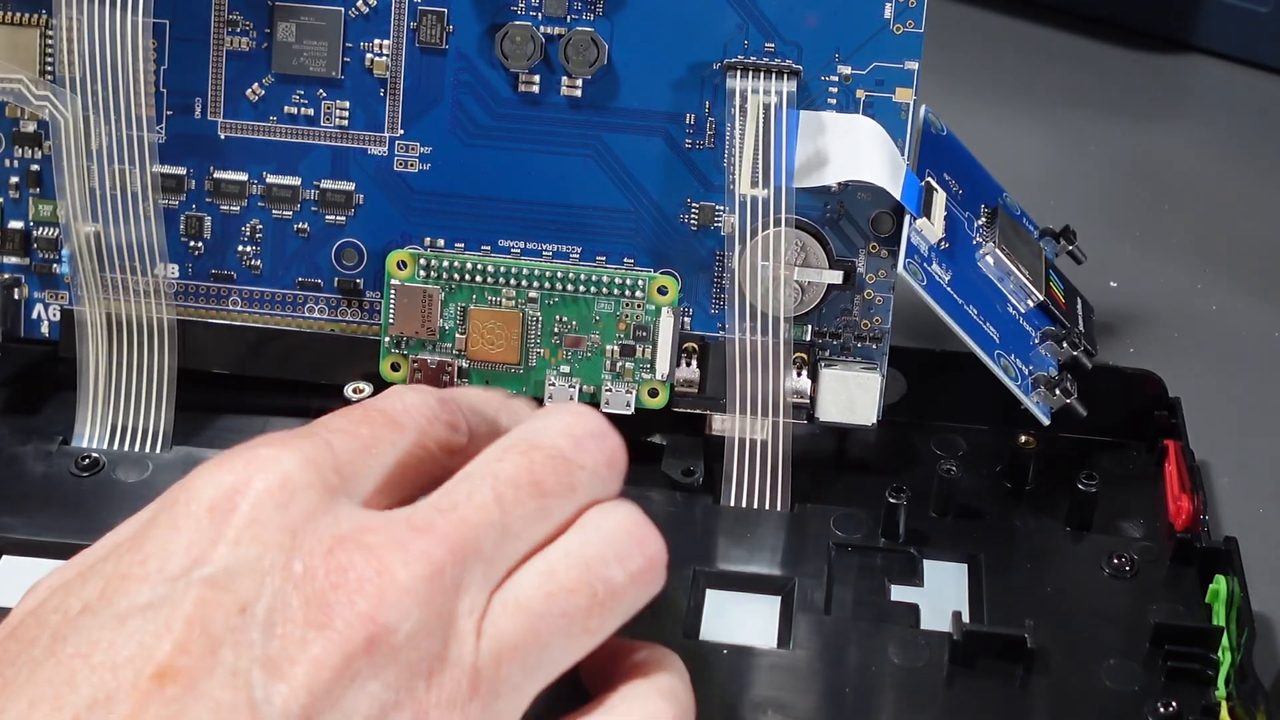
TABLE OF CONTENTS
- TABLE OF CONTENTS
- LINKS
- SUPPORT THE BLOG AND CHANNEL
- COMPANION YOUTUBE VIDEO
- VIDEO ERRATA
- UPDATES SINCE THE VIDEO
- WHAT YOU NEED
- WHY ADD A PI? THREE REASONS
- PREPARE THE NEXTPI SD CARD
- SOLDER THE HEADER
- OPEN THE NEXT
- INSTALL THE ACCELERATOR
- REASSEMBLE AND TEST
- REASON 1: LOADING TZX FILES
- REASON 2: PI DOT COMMANDS
- REASON 3: MUSIC PLAYBACK
- UPDATING NEXTPI LATER
- TROUBLESHOOTING
- LOOKING AHEAD: ISSUE 3
- SOURCES
- CONCLUSION
LINKS
Below are the links you need to add a Pi Zero accelerator to your ZX Spectrum Next.
Video Mention Links
- 💾 NextPi2 download (official): https://zx.xalior.com/NextPi2/
- 🖥️ Checkmate A1500 Plus monitor (the monitor in the video): https://checkmate1500plus.com/
- 🧰 My helping hands soldering station video on retroCombs Tech: https://www.youtube.com/watch?v=JmbbwkOgYB0
- 🌐 ZX Spectrum Next official site: https://www.specnext.com/
- 🚀 ZX Spectrum Next Issue 3 Kickstarter: https://www.kickstarter.com/projects/spectrumnext/zx-spectrum-next-issue-3-0
- 📺 My ZX Spectrum Next Quick Start video: https://www.youtube.com/watch?v=v8Ts9xAVeJo
- 📺 My live unboxing of the ZX Spectrum Next: https://www.youtube.com/watch?v=yuD-Q8eZbBQ
Tools and Accessories
- 🍓 Raspberry Pi Zero: https://link.amazon/B08dJC1RB
- 🔍 NOEVSBIG Magnetic Helping Hands with 3X LED Magnifier: https://link.amazon/B0fvlZomx
- 🔥 YIHUA 853D 2A USB Soldering and Hot Air Rework Station: https://link.amazon/B08TtUhG0
- 🧠 microSD Cards: https://amzn.to/3IYL3Kn
- 🔌 USB-C to Micro USB Adapter (for the Pi’s micro USB ports): https://amzn.to/3Wkxxrr
- 🚠 HDMI Cables: https://amzn.to/4c2vhM9
- 👚 Sew Ready Covers (tell Maggie retroCombs sent you!): https://ebay.us/EFNZGp
When you click on links to various merchants on this site and make a purchase, this can result in this site earning a commission. Affiliate programs and affiliations include, but are not limited to Amazon and the eBay Partner Network.
NextPi Resources
- SpecNext wiki, Pi:NextPi: https://wiki.specnext.dev/Pi:NextPi
- SpecNext wiki FAQ (Pi section): https://wiki.specnext.dev/FAQ
- ZX Spectrum Next User Manual, 3rd ed., pp. 220–221 (Optional Features): https://explorer.specnext.dev/documentation/manual/rev3/page/220
- How to patch NextPi2: https://zx.xalior.com/NextPi2/update/install.txt
- System/Next distribution on GitLab: https://gitlab.com/thesmog358/tbblue
- Dot command reference (Myopian’s summary): https://www.cs.hmc.edu/~oneill/specnext/dot-cmds.html
- balenaEtcher: https://etcher.balena.io/
SUPPORT THE BLOG AND CHANNEL
Check out the supporters page to learn about my supporters and how you can join our community. If this post saved you some time, you can also leave a tip.
COMPANION YOUTUBE VIDEO
Title: ⚡ Supercharge Your ZX Spectrum Next! NextPi Zero Install Guide.
 ⚡ Supercharge Your ZX Spectrum Next! NextPi Zero Install Guide
Want to catch upgrades like this live? Become a channel member and join the conversation.
VIDEO ERRATA
As of 2026-10-22:
- “Raspberry Pi 1” (~2:31): I meant a Raspberry Pi Zero (the original v1.x Zero family). Other Pi models won’t work. See What You Need. (SpecNext wiki FAQ)
- “16 gigabit” (~1:55): It’s a 16 gigabyte microSD card. I said it right a minute later. (SpecNext wiki: Pi:NextPi)
- “Zachon” (~8:00): The game is Zaxxon.
- “So Ready” (~9:30): The covers are from Sew Ready.
- “None of these dot commands will work” without the accelerator (~11:55): Too broad. Most dot commands, including
.cowsay,.nxmod,.cpm, and.termitself, ship with the System/Next distribution and run on the Next. Commands like.nextpiui,.pisend, and.piverare the ones that talk to the Pi. (System/Next dot folder; dot command reference) .cowsay“available when you install an accelerator board” (~12:00):.cowsayis a small standard NextZXOS dot command. It works with or without the Pi. (dot command reference)- “Playing MOD files does require an accelerator card” (~18:50): It doesn’t. Both
.nxmodand the NXModPlayer app I used play Amiga MODs on the Next itself. NextPi can also play MODs through the Pi, along with formats the Next can’t handle alone. See Reason 3. (NXModPlayer readme; SpecNext wiki: Pi:NextPi) - “Sit files” (~19:01): I meant SID files, the Commodore 64 music format. (SpecNext wiki: Pi:NextPi)
- “Digital video debugger” (~18:36): The case label reads DIGITAL VIDEO DEBUG. It’s the opening for the Pi’s mini HDMI output.
- Issue 3 “before the end of the year, maybe around Christmas” (~21:55): That was the 2025 estimate. As of late October 2026, Issue 3 machines have been shipped by sea to regional distribution hubs. According to a write-up of the team’s Crash Live 2026 talk, the target for deliveries to backers is November. (SpriteFountain, Aug 31 2026; Leonis’ Crash Live 2026 write-up)
- Video description: The “Did you see me unbox this computer?” link goes to my Quick Start video. The unboxing is here.
- Chapter titles: “Rasperry” should be “Raspberry” (2:11), and “Timte” should be “Time” (20:59).
UPDATES SINCE THE VIDEO
- NextPi2 1.93D is out. The download page now lists NextPi-1_93D, dated September 24, 2026, plus a 1.92D-to-1.93D patch in the
update/folder. (The wiki’s release summary still says 1.92D, so trust the download page.) (NextPi2 download; wiki) See Updating NextPi Later. - The Pi is about to get a lot more interesting. At Crash Live 2026, the Next team showed “Alpine Next,” a new system for the Pi accelerator. According to Leonis’ write-up of the talk, the Next talks to the Pi over SPI instead of the serial port, everything from the old NextPi system still works, and it’s meant for KS1, KS2, and KS3 machines alike. The write-up also mentions pausing TZX files from the keyboard. I haven’t tried it, and I don’t know of a release date. (Leonis’ Crash Live 2026 write-up)
WHAT YOU NEED
- A Raspberry Pi Zero. The SpecNext FAQ says the Zero v1.2, Zero v1.3, and Zero W all work. NextPi turns off the Zero W’s wireless.
- A 40-pin (2x20) female header. Not the male header that comes with some Pi kits. More on that in Solder the Header.
- A 16GB microSD card. NextPi2 is built for 16GB. It won’t work on smaller cards, and it won’t use the extra space on bigger ones. The wiki warns that some cards sold as 16GB are a little short and have caused problems.
- A soldering iron, solder, and something to hold the board. I used magnetic helping hands.
- A Phillips screwdriver and a microSD card reader for your computer.
Warning: the Pi Zero 2 W will not work. In the FAQ’s words, “The Pi Zero 2 series is not supported, has never been supported, won’t work properly, and no support is offered or given into getting it to work properly. Neither are any other non-Zero Pi models, or clones such as Banana Pi.” Many Pi Zero listings and kits are now Zero 2 W boards, so check the exact model before you buy. (SpecNext wiki FAQ)
The User Manual’s list of parts for the accelerator is just as short: “1 x Raspberry Pi Zero” and “1 x Female IDC connector 2 x 20 pins.” It also asks that you be “comfortable with tools and at least somewhat dexterous with a soldering iron,” understand static discharge, and have the latest System/Next distribution installed first. (User Manual, 3rd ed., p. 220)
WHY ADD A PI? THREE REASONS
First, the name. The SpecNext wiki calls “Accelerator” “somewhat of a misnomer”: the Pi doesn’t speed up the Next’s Z80. It “permits the execution of code on a much faster processor - that of the Pi Zero. Think of it as a co-processor, or ‘companion computer’.” NextPi is a customised, read-only build of DietPi, so you can switch the Next off without shutting the Pi down. (SpecNext wiki: Pi:NextPi)
In the video I covered three reasons to add one:
- Loading TZX files. This one really does need the Pi (or an external TZX player).
- Pi dot commands like
.nextpiui, plus a Linux prompt on the Pi through.term. - Music playback. MODs play without the Pi, but the Pi adds SID, SNDH, MP3, MIDI, and more.
The wiki’s feature list goes further: TZX loading at “up-to x8 speed,” text to speech, a second screen through the Pi’s HDMI port, image and video decoders, USB host support, and development tools like sjasmplus and z88dk. (SpecNext wiki: Pi:NextPi)
PREPARE THE NEXTPI SD CARD
Start the flash first. It runs while you solder.
- Download the latest NextPi2 release from the official NextPi2 site. The current file is a 5.4GB
.tar.gz(NextPi-1_93D) that holds the.imgfile and adocsfolder with install notes. An.md5checksum file sits next to it on the download page. - Extract the archive and find the
NextPi2-<date>.imgfile. - Open balenaEtcher, choose Flash from file, pick the
.img, pick your 16GB card as the target, and flash.
Warning: Double-check the target drive in Etcher. Flashing erases whatever you pick. And flash the image. Don’t copy the files onto the card.
Tip: Grab the
.md5file too. Checking the download against it before you flash can save you from troubleshooting a bad download later. Thedocsfolder in the archive has the official install notes. I didn’t read them as closely as I should have.
Older Nexts came with NextPi 1 on a 1GB card. NextPi2 works on both KS1 and KS2 machines, and the FAQ recommends it. (SpecNext wiki FAQ; Pi:NextPi)
SOLDER THE HEADER
This is the step that trips people up. The manual says the female header “needs to be soldered from the component side, therefore facing downwards.” When you’re done, you should “be able to see the RPi0’s SD card reader and all its components with the IDC header out of view.” (User Manual, 3rd ed., p. 221)
That’s backwards from a normal Pi project, where the header sits on top. In the video, I held the header the “normal” way first. Don’t. Flip it so it hangs below the board, with the chips facing up.
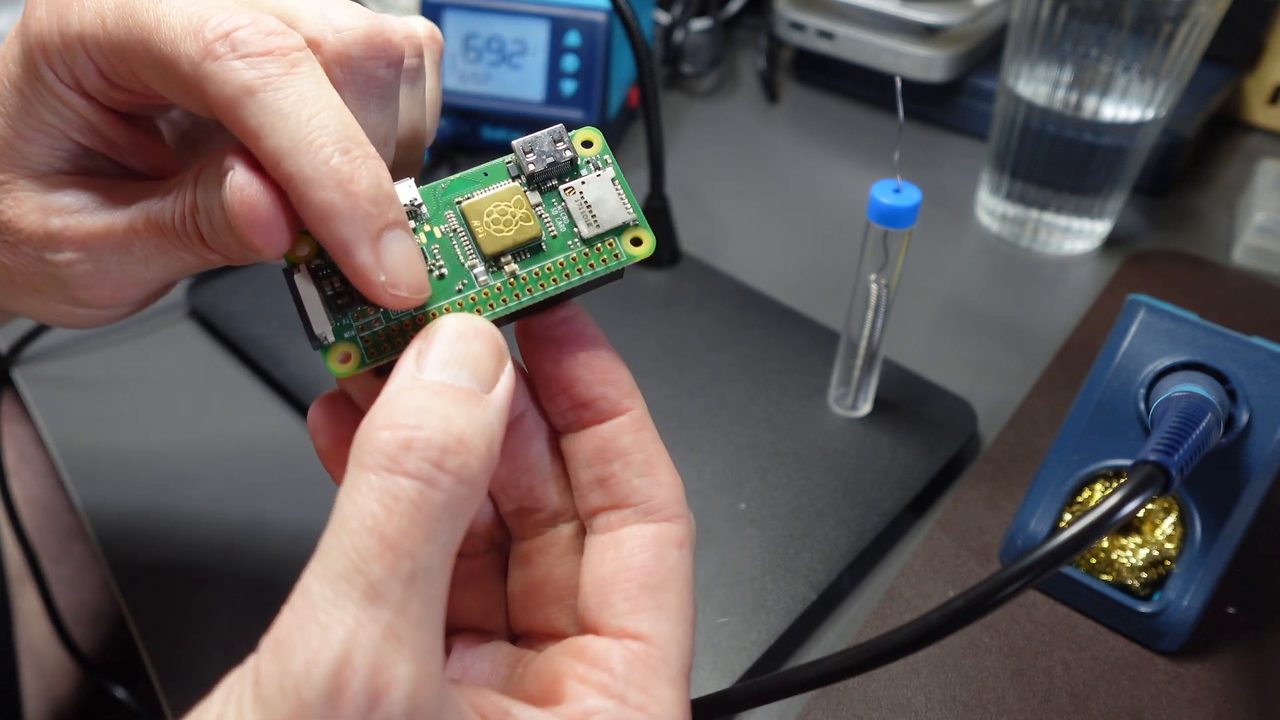
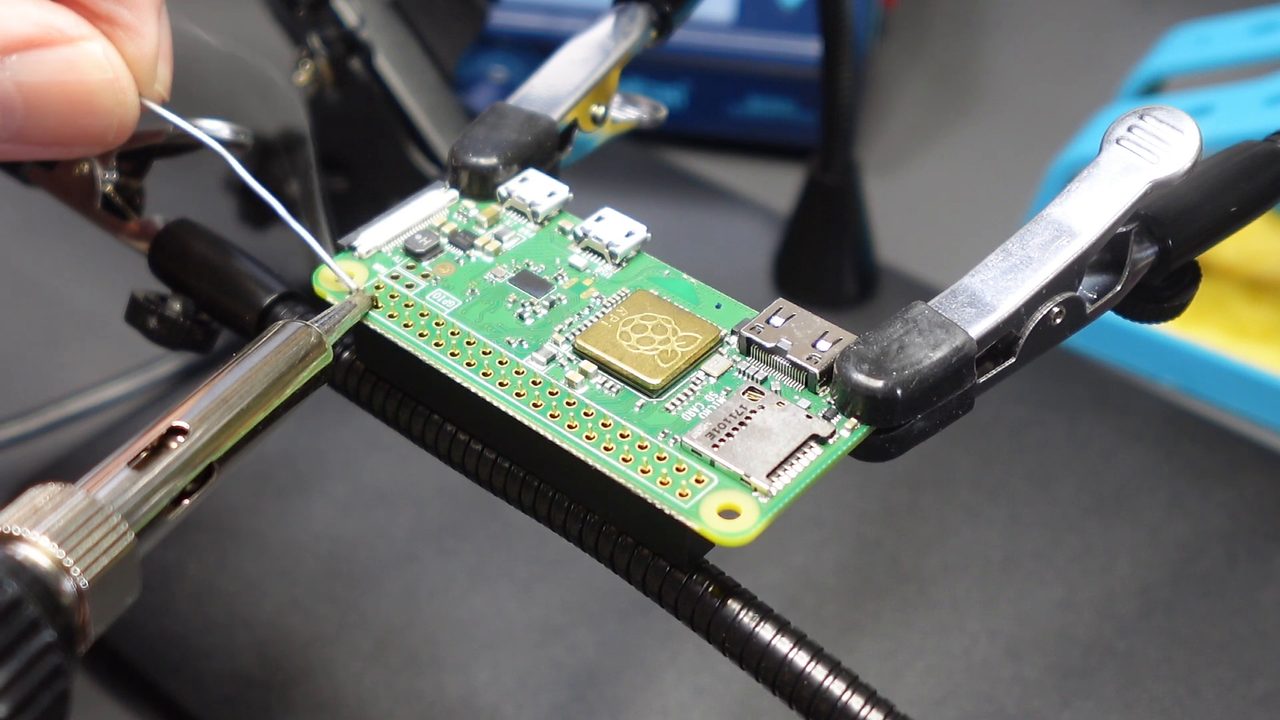
That means you solder on the component side, close to the Pi’s delicate parts. What helped me:
- Hold everything still. My magnetic helping hands clipped the Pi in place, and a second clip held the header. Blu-Tack works too.
- Temperature. I turned my iron down to about 650 (Fahrenheit on my station, roughly 343°C). An adjustable iron is worth having.
- One row at a time. Tacking a corner pin at each end first keeps the header square. After the first row, I flipped the board so I wasn’t reaching over it to get to the second row.
- Fix blobs as you go. I reheated a couple of blobby joints and they settled nicely.
- Clean up. If your solder leaves flux residue, an old toothbrush and some isopropyl alcohol clean it up. I scrubbed mine with a toothbrush on camera.
- Keep a wet sponge for the tip. (Brass wool works too.)
OPEN THE NEXT
- Put the Next face down on something soft.
- Take out the screws holding the bottom plate. Mine had six, and a couple of them hide under the feet, so open the feet up.
- Lift the bottom plate off. Nothing is attached to it. Everything lives on the top half.
- Remove the screws that hold the mainboard to the top plate, plus the screws on the SD card “sidecar” board.
- Tilt the mainboard back to reach its underside, where the Pi goes.
Note: I didn’t disconnect the keyboard ribbon, but most guides say to, so be gentle. If you leave the ribbons connected like I did, don’t pull on them or bend them sharply while the board is tilted.
Tip: The manual says this is also a good time to remove the expansion port backplate if you plan to use external interfaces. (User Manual, 3rd ed., p. 221)
INSTALL THE ACCELERATOR
- Orient the Pi so its ports face the back of the case, toward the opening the ports will come through. My mainboard labels the header “ACCELERATION BOARD.”
- Push the Pi firmly onto the header. With the header soldered correctly, the Pi’s chips and SD slot face you.
- Insert the NextPi2 microSD card into the Pi’s card slot.
- Remove the backing plate that covers the Pi’s port holes. There’s a screw first (I forgot to film that part). Then push down firmly and pull the plate up and out. It feels like it’s going to break. It even sounds like it. It’s fine. The manual says to “pry it out gently with a flat screwdriver.” You won’t need that plate again. (User Manual, 3rd ed., p. 221)
- Lay the mainboard and sidecar back into place.
REASSEMBLE AND TEST
Don’t screw everything back in yet. Plug in power and a display and check that the Next still boots. Mine did. Then put the mainboard screws, sidecar screws, and bottom plate back.
Tip: the spare screw. You’ll have one screw left over. It’s the one from the backing plate you removed. This drove me nuts for a while. Don’t let it get you too.
Flip the Next over and you’ll see new openings in the back: DIGITAL VIDEO DEBUG, which lines up with the Pi’s mini HDMI port, and USB, for the Pi’s two micro USB ports.
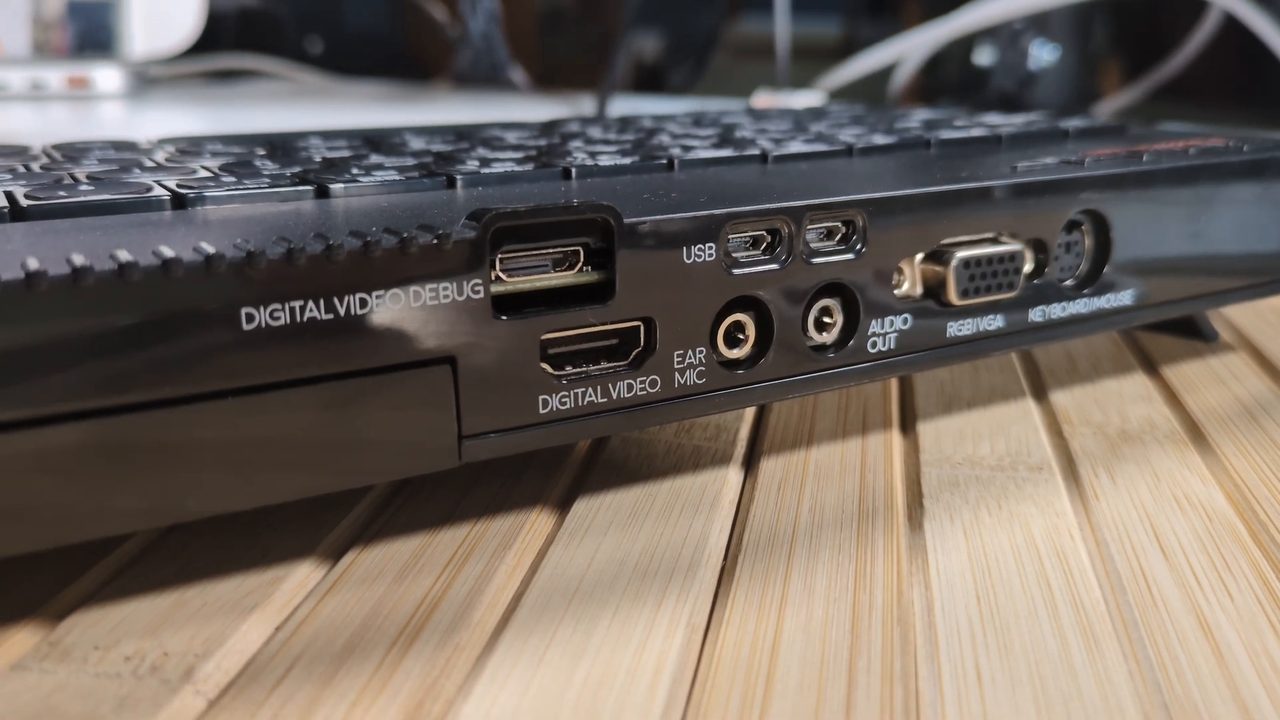
Warning: Those are the Pi’s ports, not the Next’s. The manual says to “pay attention to the Quick Start note regarding what is allowed to be plugged in the RPi0,” and the Quick Start card puts a big X over plugging USB devices in there. Read the official docs before you plug anything into them. (User Manual, 3rd ed., p. 221; my Quick Start post)
My first real test was a TZX game. More on that next.
REASON 1: LOADING TZX FILES
TZX is the tape-image format that keeps a cassette’s exact signal, including custom loaders. NextZXOS loads TAP and Z80 files on its own, but “TZX files can be loaded if you have a pi0 or an external TZX player.” (SpecNext wiki FAQ) With NextPi installed, you just pick the TZX in the Browser and the Next does the rest.
- The sounds are the fun part. The Pi plays the tape signal back like a real cassette deck, and you hear it through your speakers. I let Zaxxon load in real time in the video. The ZX Spectrum Next is my first Spectrum, so that was my first time hearing it.
- Pick the machine type when the loader asks. For my final test I downloaded Pacific War with ZXDB-dl, chose 48K, and it loaded and played. My install worked.
- Speed it up. The wiki lists accelerated TZX loading “at up-to x8 speed.” (SpecNext wiki: Pi:NextPi)
- Turbo for slow games. Zaxxon felt sluggish at 3.5MHz. Switching to 7MHz made it much more playable. On the Next, you can toggle CPU speed with NMI+8. (SpecNext wiki FAQ)
REASON 2: PI DOT COMMANDS
Dot commands are small programs you run by typing a dot and the name, either at the NextZXOS command line or inside NextBASIC. Most of them come with the System/Next distribution and run on the Next itself. The Pi-specific ones talk to NextPi over the serial link. (System/Next dot folder)
A fun one to start with (it works with or without the Pi):
.cowsay Hello retroCombs
Terminex and the SUP> Prompt
.term opens Terminex, a terminal that connects to the Pi’s command line, called the SUPervisor or SUP.
.term
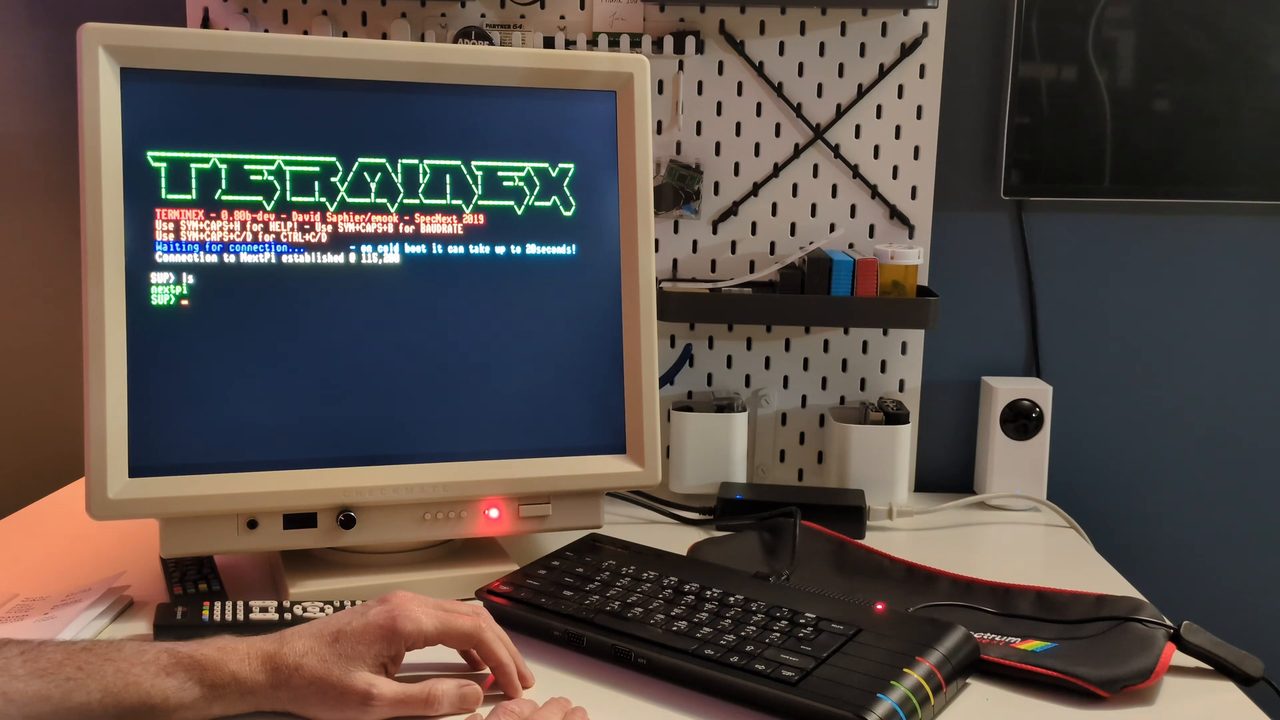
- What you should see: My version (0.80b-dev) said “Waiting for connection… on cold boot it can take up to 20seconds!”, and then “Connection to NextPi established @ 115,200” and a
SUP>prompt. If you seeSUP>, your Pi is working. - On screen help: Terminex lists its own keys: SYM+CAPS+H for help, SYM+CAPS+B for baud rate, and SYM+CAPS+C/D for Ctrl+C/D.
- If it doesn’t connect on its own: The FAQ’s older instructions say to press SYM+SHIFT+B to switch to 115,200 baud and press ENTER, then look for
SUP>. They also say SYM+SHIFT+Q quits Terminex. (SpecNext wiki FAQ)
Typing ls at the SUP> prompt lists what’s on the Pi. If you’d like a deeper dive into Terminex and the SUP commands, tell me in the video comments.
NextPiUI
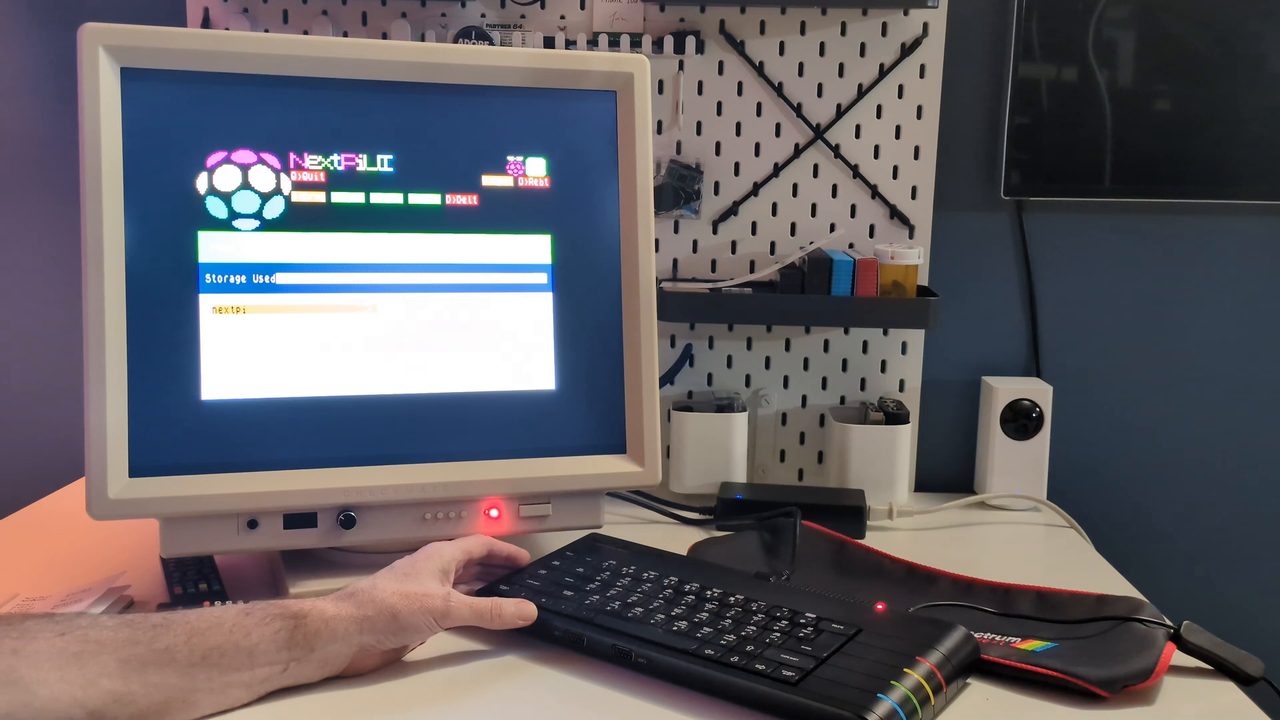
.nextpiui
.nextpiui is the best “is my Pi alive?” check. It opens a menu-driven interface for the Pi. Press SPACE to get to the storage view, which shows how much of the Pi’s 16GB card is in use. From the strings inside the command, it can also copy files to the Pi, reboot NextPi, and run the NextPi updater.
Check Your NextPi Version
This isn’t in the video, but it’s worth knowing. The official patch notes give two commands:
.pisend -q
.piver -p
.pisend -q finds the Pi and sets the speed, and .piver -p prints your NextPi version. If .piver gives a “No such command” error, your System/Next distribution is older than January 2023. Grab the latest PIVER from GitLab and put it in your /dot folder. (How to patch NextPi2; PIVER on GitLab)
REASON 3: MUSIC PLAYBACK
Here’s where I got it wrong on camera. MOD playback doesn’t need the Pi:
.nxmodplays a single Amiga Protracker module from the command line or NextBASIC. Change into a folder with MODs and run it:
.nxmod kef2.mod
- NXModPlayer is a full player app in
apps/audio/NXModPlayer. It has a MOD browser, pattern view, channel mutes, and aMODSfolder of tunes to try. Its readme credits “Paula emulation & Mod Engine by 9bitcolor” and “NXModPlayer by em00k”. This is the player with the cool visuals in the video. (NXModPlayer readme)
What the Pi adds is a “Virtual Sound-Card as dedicated Next DAC channel.” Its players include Amiga MOD, Atari SNDH, C64 SID (“inaccurate, some analog filters are appoximations”), General MIDI, MP3, and WAV. (SpecNext wiki: Pi:NextPi) The .pisend help text shows the pattern for sending commands to NextPi, including a SID example (.pisend -c nextpi-play_sid ...). (dot command reference) I haven’t tried Pi playback yet. If you want a video on SID and video playback through the Pi, tell me in the comments.
Tip: Copying files to the SD card from a Mac? macOS leaves hidden
._files next to your real ones. You can see._KEF2.MODand friends in my NXModPlayer file list. They aren’t real MODs, so don’t pick them. Runningdot_cleanon the card’s folder in Terminal removes them. (dot_clean man page)
UPDATING NEXTPI LATER
You don’t have to reflash the card or open the Next to update NextPi2. The official steps: (How to patch NextPi2)
- Check your version with
.piver -p(see above). - Copy the right patch zip from the update folder to the Next’s SD card. For example,
192D193D.ziptakes 1.92D to 1.93D. If there’s no single patch for your jump, update in stages. - In the Browser, select the zip and press ENTER. The Next unzips it.
- Go into the new folder, open
Update.bas, and follow the prompts. - Don’t power off during the update. The notes suggest you avoid “running your next on batteries or during a thunderstorm!”
TROUBLESHOOTING
- The Next won’t boot after the install. Power off, remove ALL cables, and check that the Pi is seated straight on the header, facing the right way. Some TVs back-power the Next through HDMI. (SpecNext wiki FAQ)
- The Pi won’t seat or the ports don’t line up. The header is probably on the wrong side, or it’s a male header. It should be a female 2x20 header on the component side, facing down. (User Manual, p. 221)
- Terminex never shows
SUP>. Give it up to 20 seconds after a cold boot. Then check that you have a Zero v1.x and not a Zero 2, that the card is a genuine 16GB card, and that you flashed the image rather than copying files. (SpecNext wiki FAQ; Pi:NextPi) - The Pi works but TZXs won’t load. The FAQ says you may need newer
dot/pisendandnextzxos/tzxload.basfiles from the System/Next GitLab repository, because those were updated after the distro was released. Update to the latest distro first. - A specific TZX fails. The FAQ asks for your core and NextZXOS versions, your video mode (VGA0, HDMI, and so on), the exact game name, and where the load failed. It also asks whether you left something plugged into the EAR port. (SpecNext wiki FAQ)
- Unofficial NextPi images. The FAQ warns that third-party “NextPi-compatible” distributions “are NOT fully nextpi compatible, at all.” Stick with the official download. (SpecNext wiki FAQ)
LOOKING AHEAD: ISSUE 3
I installed this Pi with my Issue 3 upgrade board in mind. The plan is to move it over when the new board arrives, and I’ll install that board live on the channel. Issue 3’s changes and which board fits a KS1 or KS2 case are covered in my Quick Start post’s Issue 3 section.
The NextPi2 download page still describes itself as “for KS1 & KS2 SpecNext,” but the Next team says the coming Alpine Next system will support KS1, KS2, and KS3. (NextPi2 download; Leonis’ Crash Live 2026 write-up) I’ll report back on how the Pi moves over when I do the install. Become a channel member so you don’t miss it.
SOURCES
Everything in this post was checked on 2026-10-22 against these sources:
- NextPi2 official download: https://zx.xalior.com/NextPi2/
- How to patch NextPi2: https://zx.xalior.com/NextPi2/update/install.txt
- SpecNext wiki, Pi:NextPi: https://wiki.specnext.dev/Pi:NextPi
- SpecNext wiki, FAQ: https://wiki.specnext.dev/FAQ
- ZX Spectrum Next User Manual, 3rd ed. (Explorer), p. 220: https://explorer.specnext.dev/documentation/manual/rev3/page/220 and p. 221: https://explorer.specnext.dev/documentation/manual/rev3/page/221
- System/Next distribution,
dotfolder: https://gitlab.com/thesmog358/tbblue/-/tree/master/dot - System/Next, PIVER: https://gitlab.com/thesmog358/tbblue/-/blob/master/dot/PIVER
- System/Next, NXModPlayer: https://gitlab.com/thesmog358/tbblue/-/tree/master/apps/audio/NXModPlayer
- System/Next, Terminex readme: https://gitlab.com/thesmog358/tbblue/-/blob/master/apps/rpi/Terminex/readme.MD
- Myopian’s dot command summary: https://www.cs.hmc.edu/~oneill/specnext/dot-cmds.html
- SpecNext, Latest distro: https://www.specnext.com/latestdistro/
- balenaEtcher: https://etcher.balena.io/
- SS64, dot_clean man page: https://ss64.com/mac/dot_clean.html
- Issue 3 Kickstarter: https://www.kickstarter.com/projects/spectrumnext/zx-spectrum-next-issue-3-0
- SpriteFountain, “ZX Spectrum Next Issue 3 is on the water” (Aug 31 2026): https://www.spritefountain.com/zx-spectrum-next-issue-3-shipping-moves-to-sea-transit/
- Leonis, “Crash Live 2026: The Next Team Talks”: https://leonisx.itch.io/zx-spectrum-next-db/devlog/1715478/crash-live-2026-the-next-team-talks
- My videos: NextPi install (https://www.youtube.com/watch?v=06S6ZSgc-w0), Quick Start (https://www.youtube.com/watch?v=v8Ts9xAVeJo), unboxing (https://www.youtube.com/watch?v=yuD-Q8eZbBQ), and helping hands (https://www.youtube.com/watch?v=JmbbwkOgYB0)
CONCLUSION
That’s the whole job: flash a 16GB card, solder a female header on the “wrong” side of a Pi Zero, remove six screws and one stubborn backing plate, and push the Pi into place. In return you get TZX loading with real tape sounds, a Linux companion computer at the SUP> prompt, and a pile of new audio formats. And with Alpine Next coming, the Pi looks set to do much more.
Let me know in the video comments what you’d like to see the Pi do next: SID playback, the second screen, or a deep dive into Terminex. If this post helped, leave a tip.
That’s it for me, folks. 🕹️ retroCombs, OUT!
Comments
Comments use GitHub Discussions; sign in with GitHub to join in.